
Having set up our Business Units and Security Roles, we need to set up our Teams. As before, ask your Office 365 admin to set up the following Entra Security Groups:
- HQ Admin
- California Admin
- New Jersey Admin
- HQ Readers
- California Readers
- New Jersey Readers
As before (LINK) create Teams with the same names as the above, and link them to the Entra Security Group of the same name. On saving each Team, the side navigation will prompt you to select a Security Role – select the role with the same name as your team.
As before, we add users of our app to the relevant Entra Security Group in order for them to inherit the assigned Security Role.
Note that for each of our three Business Units, Power Platform automatically creates Teams of the same names, in my case:
- Headquarters (my default Business Unit name)
- California
- New Jersey
These are ownership teams, which is what will allow members to access the relevant rows of data for their Team in a given Dataverse table. The next step is to allocate users to the relevant Teams – this is done by assigning them to the correct Businesss Unit.
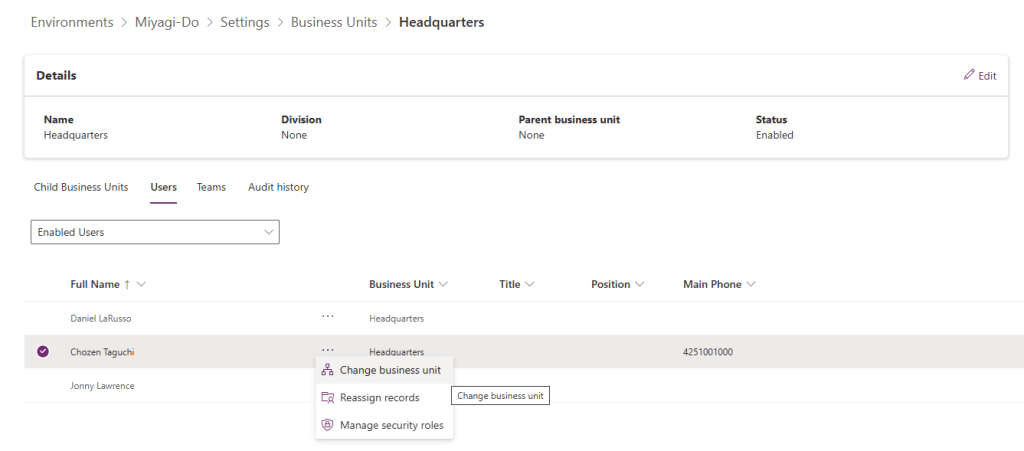
Navigate to the environment page for our Miyagi-Do Dojo Membership From there select Business Units before clicking the default Business Unit (mine is named Headquarters). By default, all users of the environment are members of the default Business Unit. Select a user and the select Change business unit as below:
I will change Chozen Taguchi to be a member of the New Jersey Business Unit (and thus now a member of the New Jersey Team):
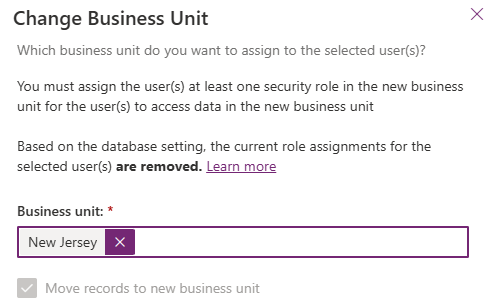
Repeat the process to assign Jonny Lawrence to the California Business Unit.


Leave a Reply