
In our previous posts, we have covered:
- the use of different Environments for totally separate groups of users
- the use of Security Roles to establish a user hierarchy within an Environment by assigning relevant privileges
- the use of Teams to allocate Security Roles via team membership.
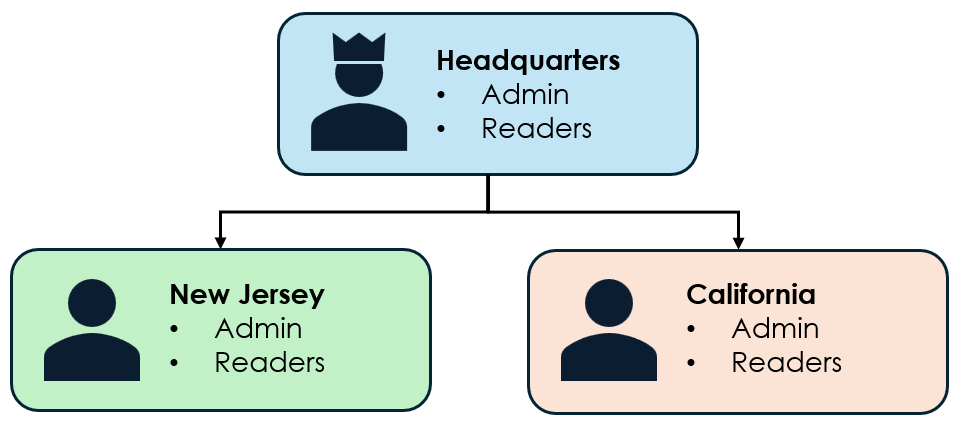
In this post we want to take things a step further. In a previous post, we used Teams to allocate Security Roles, thus setting what permissions users have on the specified tables. We wish to extend this to restrict what rows of data team members have on any specified table. We do this using Business Units in conjunction with Teams.
Let’s revisit our Miyagi-Do Dojo Membership app and consider the following scenario.
- Miyagi-Do are opening two dojos – one in California and another in New Jersey
- Chozen Taguchi will manage the New Jersey dojo – he will be able to add, view and edit new members to the New Jersey dojo but he will not be able to see members of the California dojo.
- Jonny Lawrence will manage the California dojo – he will be able to add, view and edit new members to the California dojo but he will not be able to see members of the New Jersey dojo.
- Daniel LaRusso will have oversight of everything. He will be able to add, view and edit members of either dojo.
Within Power Platform Admin, navigate to the environment our Miyagi-Do Dojo Membership solution is in. From there select Business Units.

From the Business Units screen, click + New business unit from the top ribbon, and complete the dialog as shown before clicking Save.
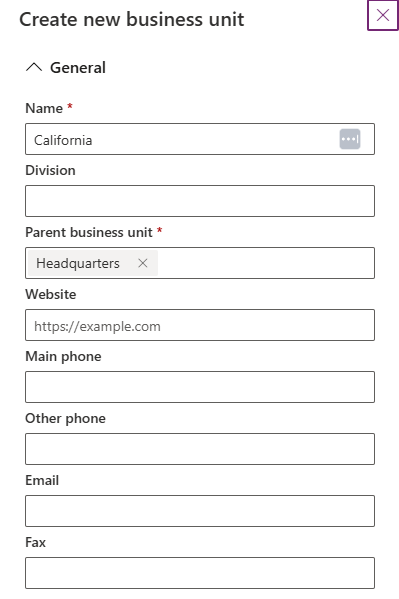
- Name – California
- Parent business unit – default business unit.
Repeat the process above to create another business unit
- Name – New Jersey
- Parent business unit – default business unit.


Leave a Reply