
Power Apps are great, but they aren’t always the solution.
But this is a Power Platform blog! Why am I telling you to not write Power Apps?
Sometimes when you have a hammer, every problem looks like a nail. I’m not opposed to writing Power Apps, I’m opposed to writing them for the sake of it (or “for the craic” as we say here). Let’s consider the following scenario.
In this post, we updated our Dojo Membership app with an influx of 1000 new members. Following on from this, Jonny Lawrence and Daniel LaRusso would like members to complete a customer satisfaction survey on a regular basis.
One solution would be to create an app (canvas or model-driven) and ask all members to complete the survey in the app.
However, doing so would require issuing each dojo member with a Power Apps Premium license, at cost of a few thousand dollars per month so that 1000 members can fill in an occasional survey, in addition to the management of licenses and user accounts. The benefit here does not meet the costs.
Another option (and what we’ll cover today) is to use Microsoft Forms. We can use Power Automate to capture the output and store in Dataverse, and then add to the Dojo Membership app.
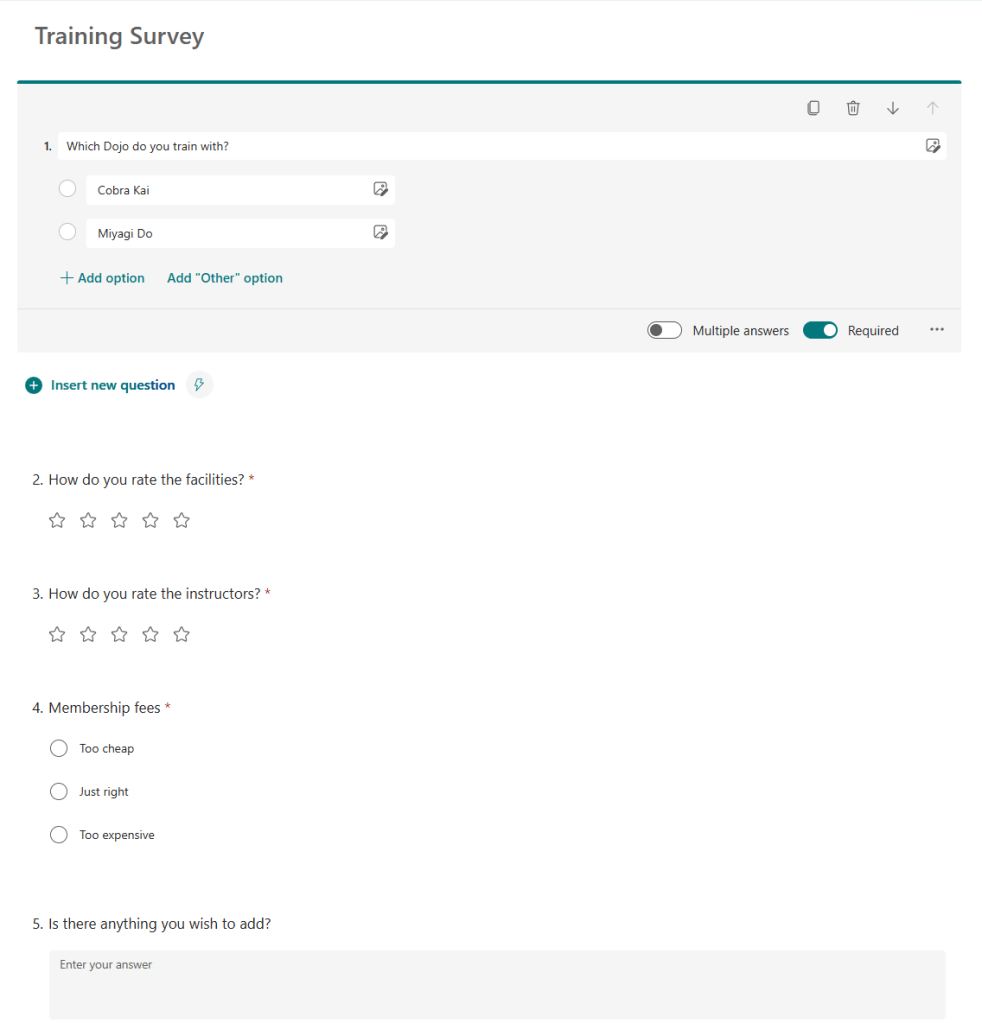
Go to https://forms.office.com/ and create a new form named Training Survey with the following questions:
- Which Dojo do you train with? (Choice)
- Cobra Kai
- Miyagi Do
- How do you rate the facilities? (Rating – 5 stars)
- How do you rate the instructors? (Rating – 5 stars)
- Membership fees (Choice)
- Too cheap
- Just right
- Too expensive
- Is there anything else you wish to add? (Text, Long answer enabled).
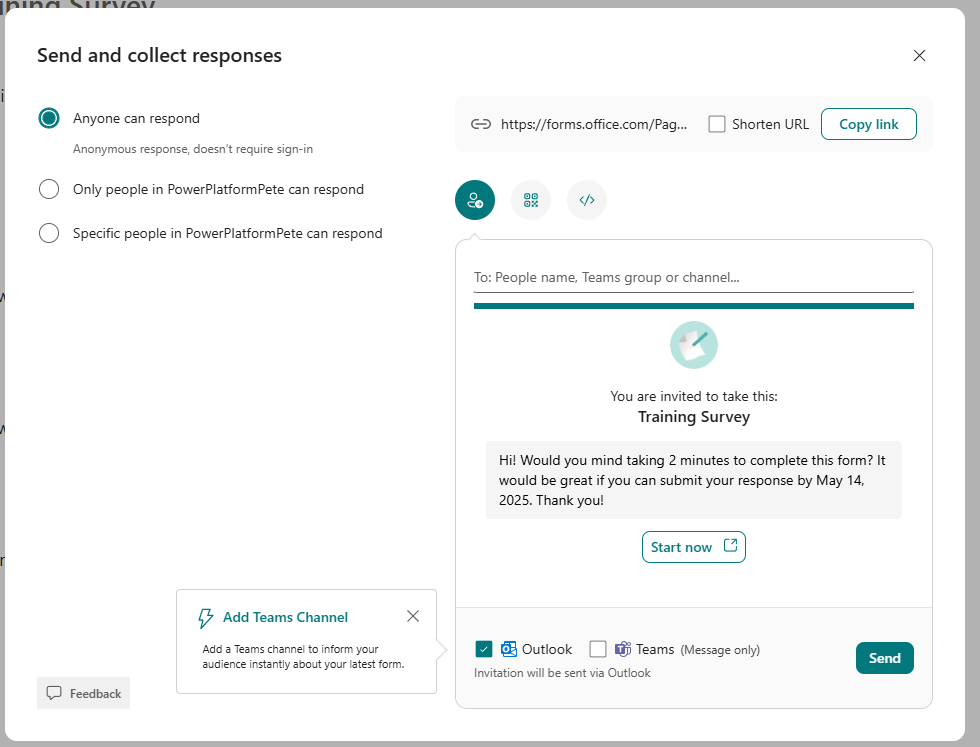
Click on the Collect Responses button and select the Anyone can respond option. Click the Copy link button, and share with dojo members. Note that this will allow submissions from anyone with access to the link.
Before we capture submissions, we should create a Dataverse table to record our responses. From the solution view of our Dojo Membership solution, click on + New > Table to create table named Survey Response. Add the following columns:
- Reference – Autonumber, primary column (see this post for a reminder on autonumbers)
- Dojo – Choice
- Cobra Kai
- Miyagi Do
- Facilities – Whole number
- Instructors – Whole number
- Fees – Choice
- Too cheap
- Just right
- Too expensive
- Comments – Text
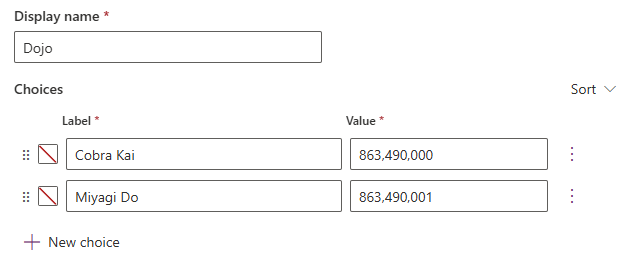
Take note of the numeric values of your Choices, such as Dojo:
Now we go to Power Automate. Create a new Automated cloud flow named Record Training Survey and select the Microsoft Forms trigger When a new response is submitted. Click Create.

Let’s create our workflow with the following components:
- Trigger – Microsoft Forms – when a new response is submitted
- Action – Initialize variable
- Action – Initialize variable
- Scope – Try
- Action – Microsoft Forms – Get response details
- Action – Set variable
- Action – Set variable
- Action – Dataverse – Add a new row
- Scope – Catch
- Action – Terminate
We will update the parameters of our trigger by selecting the Form Id to be the name of the form we created – Training Survey.
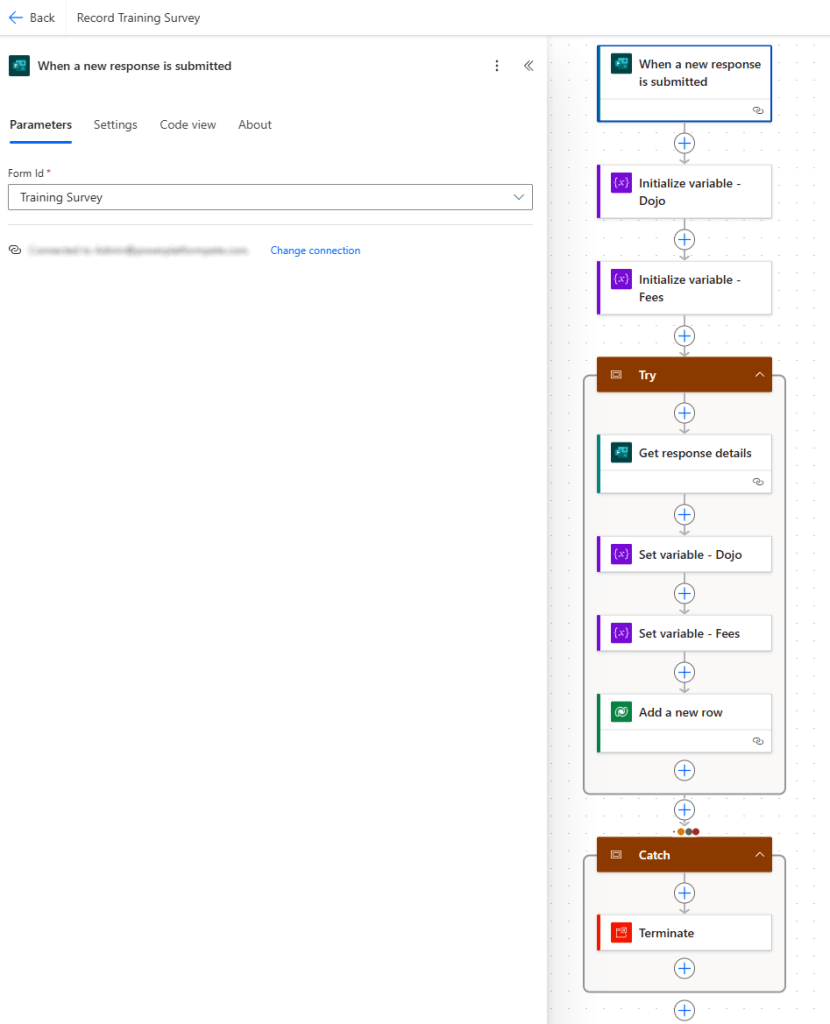
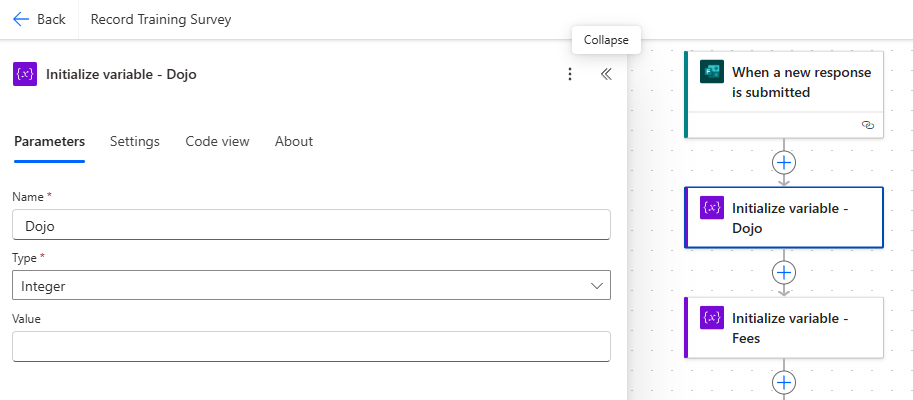
Up next, we have two Initialize variable actions, which we have renamed as:
- Initialize variable – Dojo
- Initialize variable – Fees
The reason for creating these two variables is as follows – all response values from the submitted forms are strings, whereas the corresponding columns we wish to store these values into are Choice values, which equate to numeric values. What we want to do is create separate Integer variables for Dojo and Fees respectively, which we can set later based on the values submitted in the form.

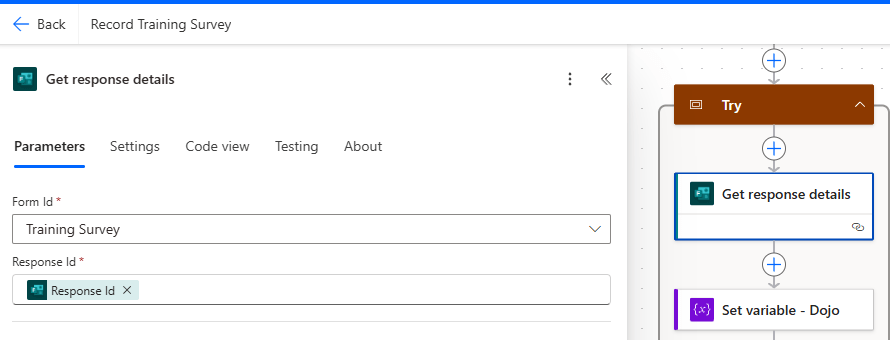
Next, we step inside our Try block and look at the Get response details action. We set the parameters as follows:
- Form Id – Training Survey
- Response Id – Response Id (from trigger).
Next, we want to set the value of our Dojo variable based on the user response to the question Which Dojo do you train with? To do this, we use an if statement:
if(
equals(
outputs('Get_response_details')?['body/XXXXX'],
'Cobra Kai'
),
863490000,
863490001
)
Let’s break this down:
- if(equals(a,b),x,y) – this is a simplified version of our statement. We are saying that if a and b are equal, then set the value to x else y.
- outputs(‘Get_response_details’)?[‘body/XXXXX’] – this is the a in our statement. We use the Dynamic content tab to set this as the answer to Which Dojo do you train with? (see below).
- ‘Cobra Kai’ – this is the b in our statement. It is a constant value we are comparing to a.
- 863490000 – this is x – the Choice value for Cobra Kai (see above) in my table.
- 863490001 – this is y – the Choice value for Miyagi Do (see above) in my table.

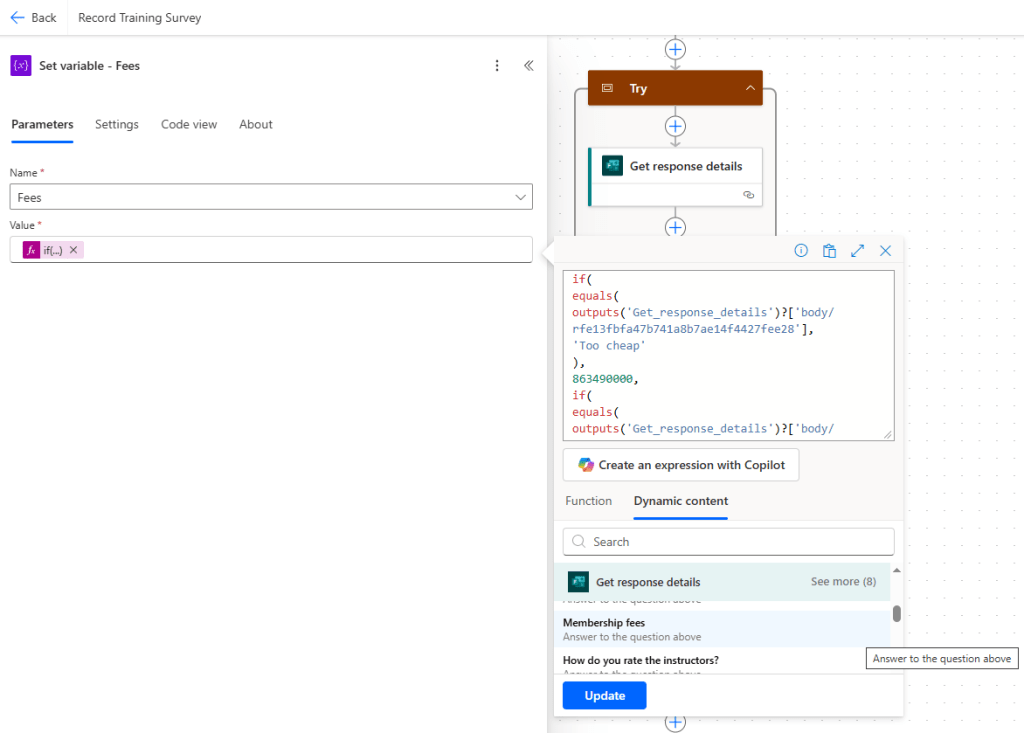
Setting the value of Fees is somewhat similar, but the code is a bit longer because we have three options rather than two:
if(
equals(
outputs('Get_response_details')?['body/YYYYY'],
'Too cheap'
),
863490000,
if(
equals(
outputs('Get_response_details')?['body/YYYYY'],
'Just right'
),
863490001,
863490002
)
)
Let’s break this down again:
- if(equals(a,b),x,if(equals(a,c),y,z) – this is the simplified version of our statement. If a equals b, return x else if a equals c, return y else return z.
- outputs(‘Get_response_details’)?[‘body/YYYYY] – this is the a in our statement. We use the Dynamic content tab to set this as the answer to Membership fees (see below).
- ‘Too cheap’ – this is the b in our statement. It is a constant value we are comparing to a.
- 863490000 – this is x – the Choice value for Too cheap in my table.
- ‘Just right’ – this is the c in our statement. It is a constant value we compare against a if a does not equal b.
- 863490001 – this is y – the Choice value for Just right in my table.
- 863490002 – this is z – the Choice value for Too expensive in my table.
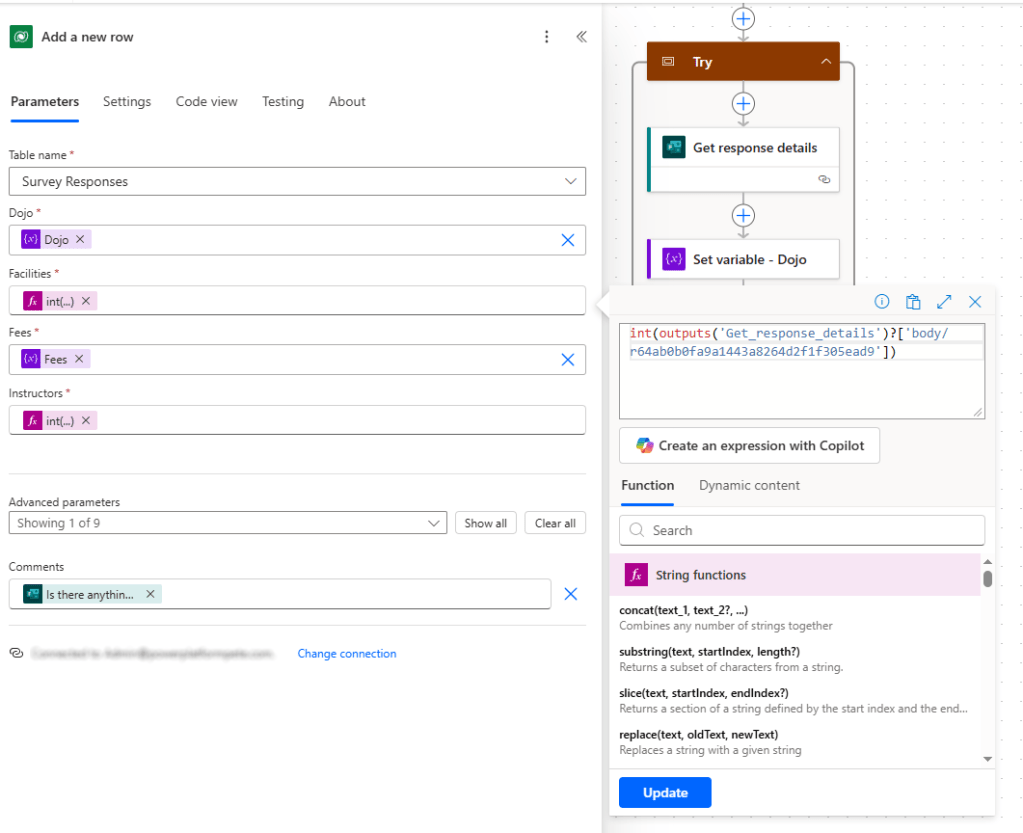
Now we set the values for our Add a new row action as follows:
- Table name – Survey Responses
- Dojo – Dojo variable
- Facilities – see below
- Fees – Fees variable
- Instructors – see below
- Comments – Is there anything else you wish to add? (from the Get response details action).
The Facilities and Instructors values from th eform submission are string values that we wish to convert to integer values to store in the Facilities and Instructors columns of our Dataverse table. We can use the int() function shown below to convert these values.
Lastly, we set the Terminate action to have a Status of Failed if an error occurs. Feel free to add any additional error notifications you wish here.

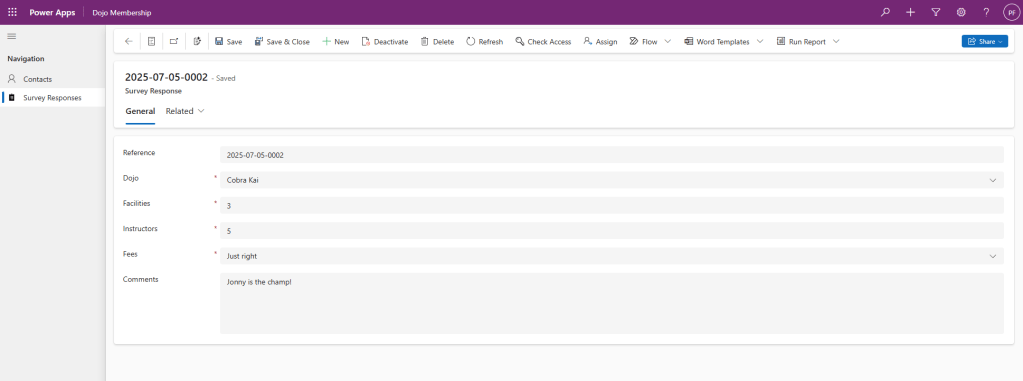
I’ve gone ahead and updated the Views, Forms and Icon for our Survey Response table – if you would like a recap on this, take a look here, here and here! I’ve added a new page for Survey responses to the Dojo Membership app – all submitted responses shown in the View:

And individual responses are shown in the Form:
Recap on today’s learnings:
- Not everything needs to be a Power App
- Give due consideration to license costs vs. benefits
- How to capture Microsoft Forms output and store in Dataverse
- Parsing form input and converting to necessary format.
 Power Platform Pete
Leave a comment