
A common feature of many customer relationship management (CRM) systems is the ability to generate documents by combining a record (or multiple records) with a standard template. Consider the scenario where a doctors surgery issues letters to patients to inform them of an upcoming seasonal vaccination clinic – the content of all letters is the same, except for the name and address of the patient.
In our LaRusso Autos application, we would like to generate a Microsoft Word document when a vehicle service appointment is complete, outlining the details of the service itself. We will use the technique from this previous post to create two separate flows:
- Generate Service Document – generates our requested document for a supplied Service ID and distributes via email.
- Complete Service – calls the Generate Service Document flow when a service is marked as complete.
These two flows could indeed be combined into a single flow, but the split approach allows us to test Generate Service Document separately without the need to update record in the Service table, and it allows Generate Service Document to be used in other flows, promoting code reuse.
Let’s begin by creating our Microsoft Word template. Upon opening Word, the first thing to to is to enable the Developer tab.

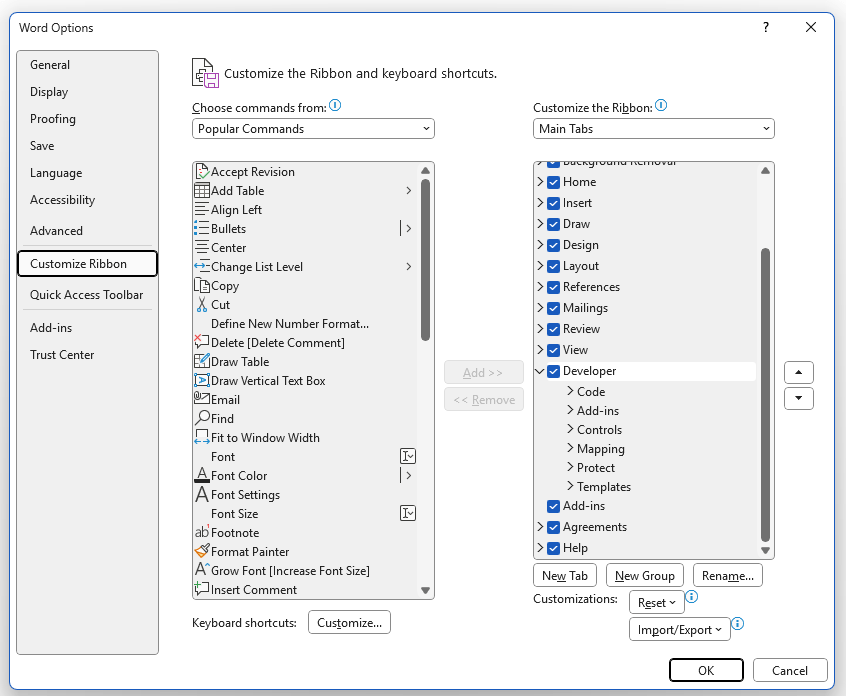
To enable the Developer tab, select File -> Options. This will display the dialog box shown below – from there select Customize Ribbon from the left, then click on the Developer tab on the right before clicking OK.
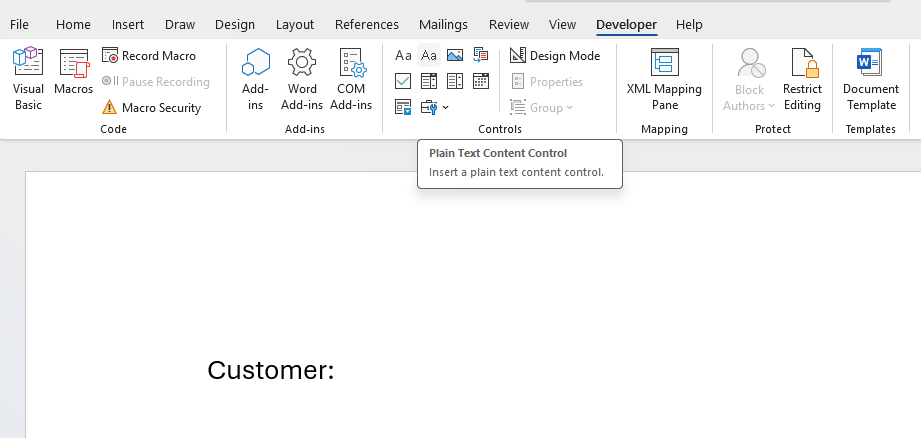
In a new document, I have typed Customer: and then hovered over the Plain Text Control button (labeled Aa here, just under Mailings).
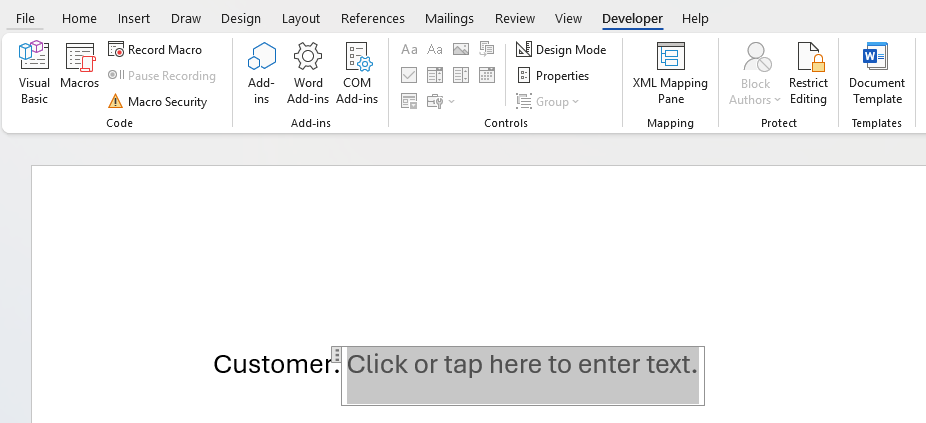
Clicking the Plain Text Control button will add a placeholder to our document:
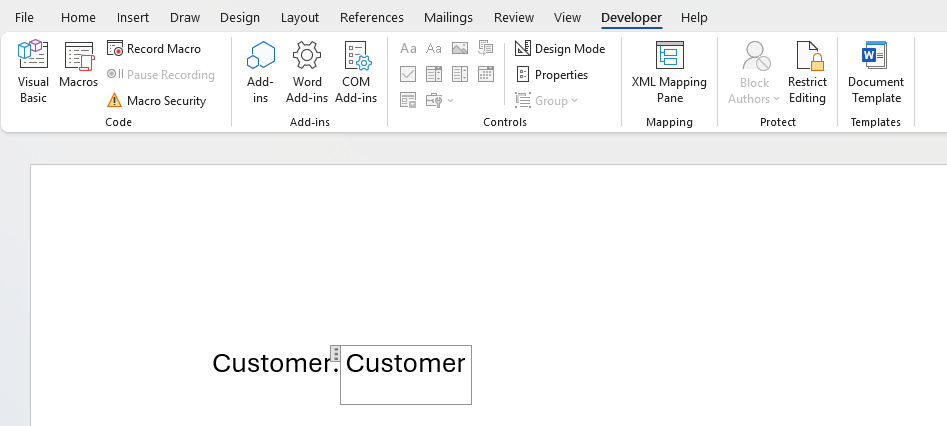
The Plain Text Control we have added here allows us to add dynamic content to the document. This is where we will add the Customer name at runtime. We should give the control a meaningful name – I’ve added the text Customer here:
When we use our template in Power Automate later, we can set the value of our control by referencing its name. Repeatedly add controls to end up with the following:
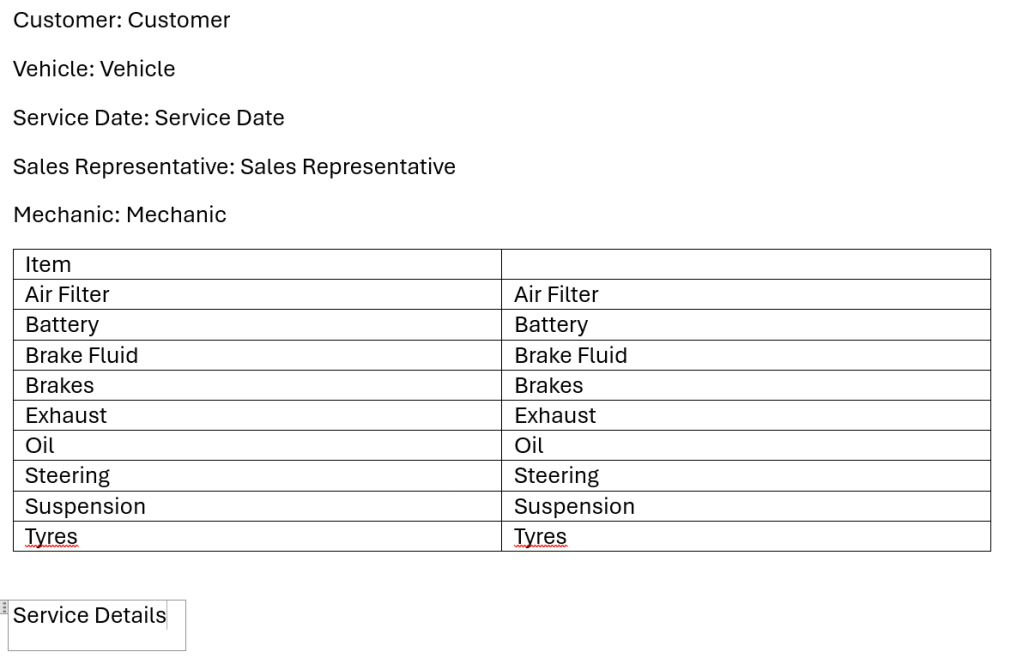
I’ve added controls for:
- Customer details
- Vehicle Details
- Service Details
Save our document – well done, you’ve created your first Word template!

 Power Platform Pete
Leave a reply to On-Demand Instant Flows within Model-driven Apps – Power Platform Pete Cancel reply