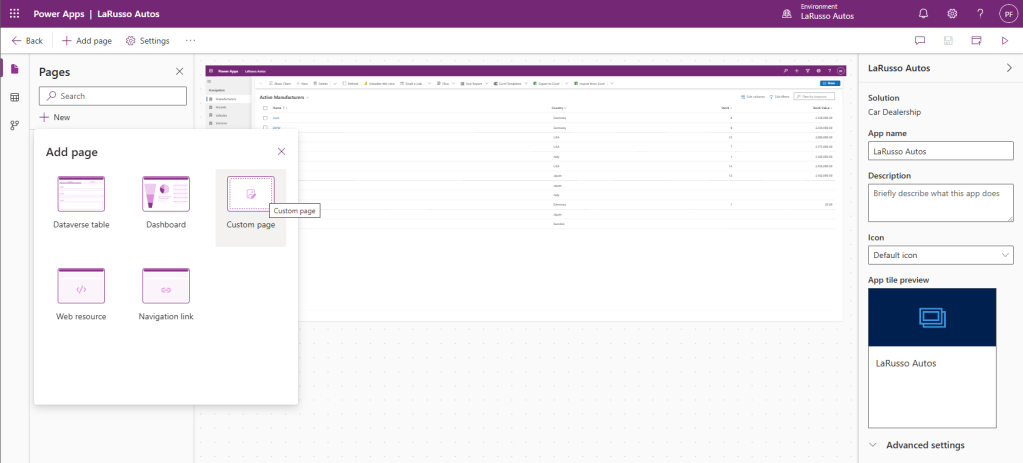
Now that our custom page is published, we open our LaRusso Autos model-driven app in edit mode. Click on the + Add page button in the top ribbon and select the Custom page option.
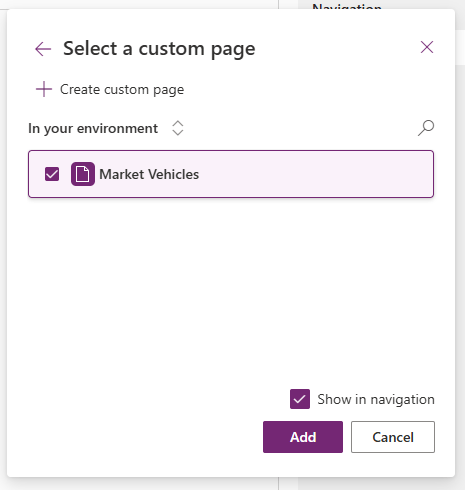
Select our Market Vehicles custom page, select Show in navigation and click Add.
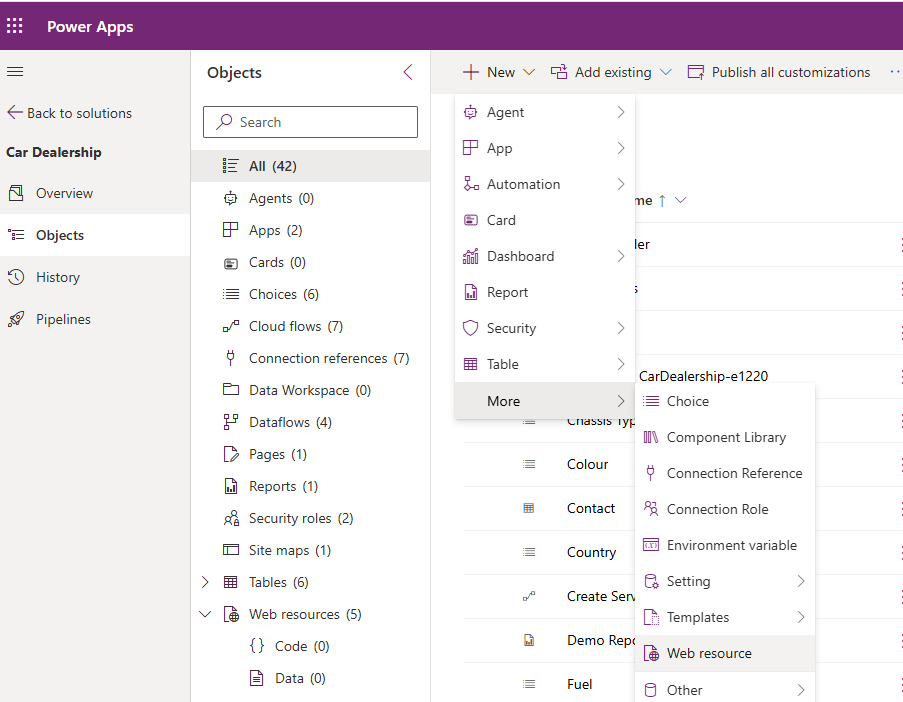
Note that the default icon for our new page in the navigation (urgh). We can update this by adding an icon to our solution and using that (see this post for a range of resources). From our solution view, we click + New > More > web resource from the top ribbon.
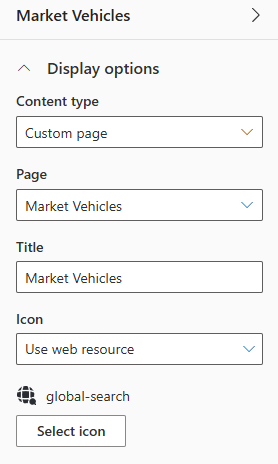
Upload an icon of your choice. Return to the model-driven app edit mode and select our custom page. From the page properties dialog on the right of the screen, select Icon – Use web resource and select our new icon.
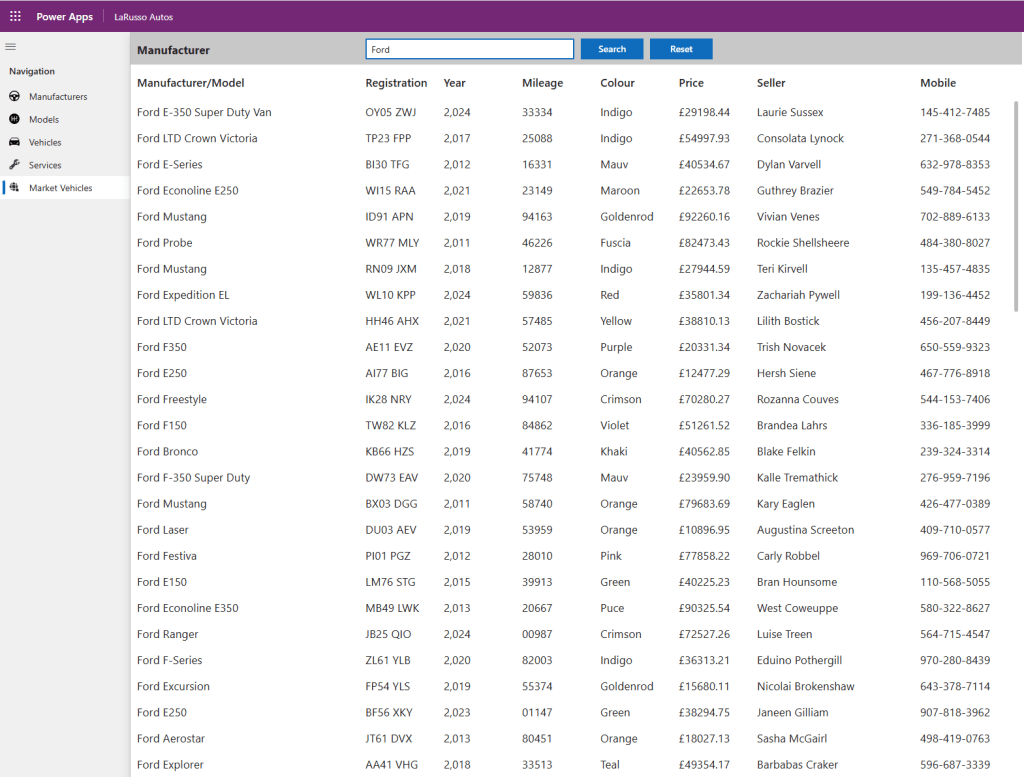
And we have the following result! Note how we’ve used the search bar to return only Ford vehicles and how we’ve used the full height of the screen!
 Power Platform Pete
Leave a comment