
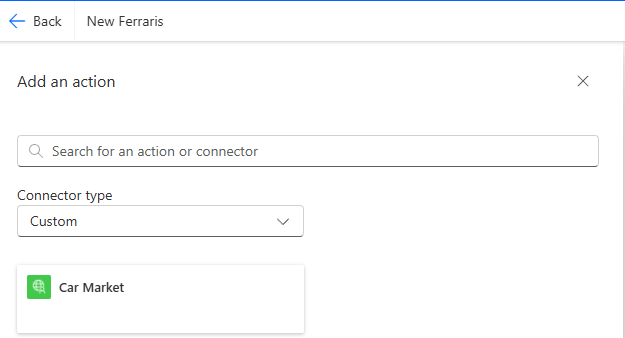
Now let’s revisit the scheduled flow we created in the last post. We want to add in our custom connector in place of the HTTP connector. Click on the + icon on the canvas within the Try container to add a new action. If we filter by Connector type as Custom, we can see our new Car Market connector. Click to add to our flow.
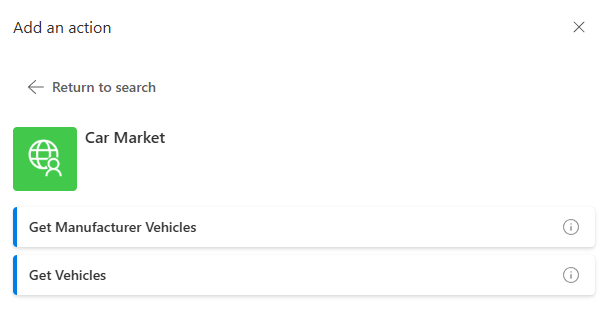
Note how both of our API endpoints are available as actions of our custom connector. Our original flow searched for Ferrari vehicles only, so we will use our Get Manufacturer Vehicles action.
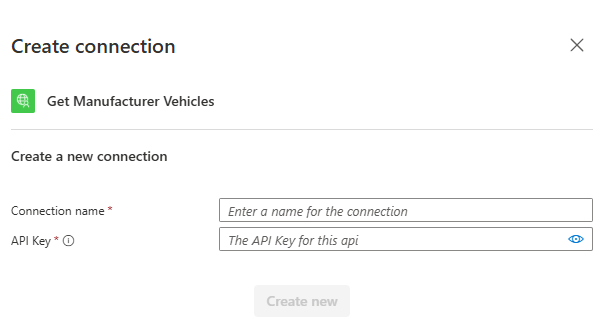
Once we select out action, we need to authenticate – i.e. this is the point at which we supply our API key. Note that we will not need to supply it in any subsequent requests, and the value is securely encrypted in our environment.
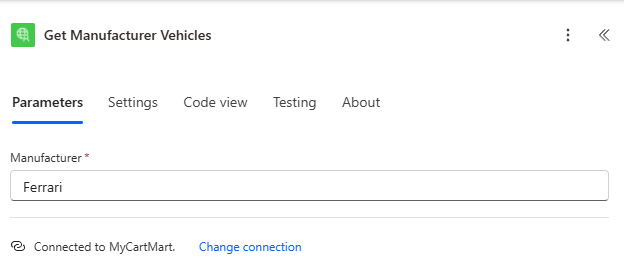
As mentioned, we supply our input parameter Manufacturer as Ferrari.
We update our flow to remove the HTTP and Parse JSON actions from before, resulting in the following:
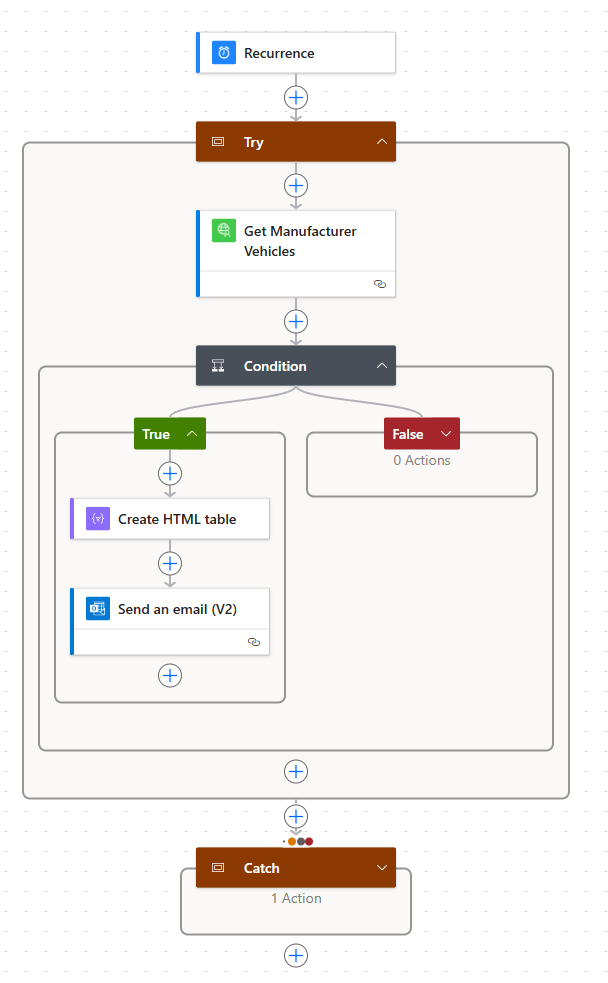
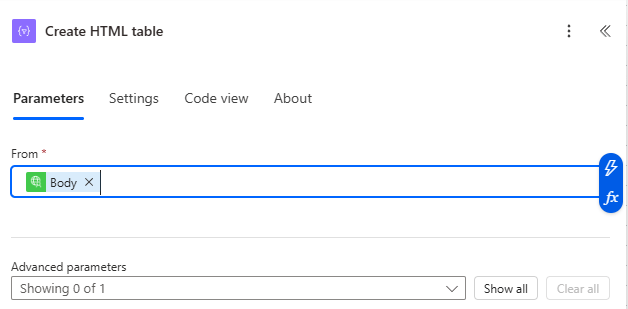
Note that we must update the Condition to refer to our custom connector – we want to fetch the length of the body from the Get Manufacturer Vehicles action.
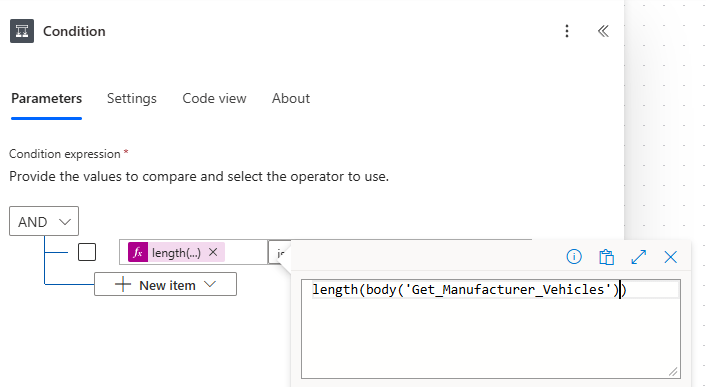
Also, we update our Create HTML table action to refer to the Body from the Get Manufacturer Vehicles action.
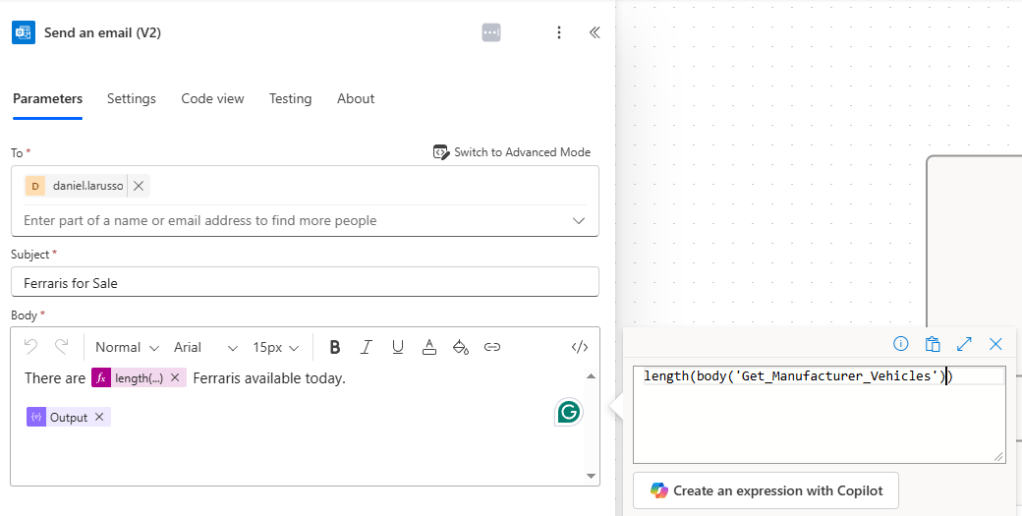
And lastly the Send an email (V2) action should refer to the length of the body from the Get Manufacturer Vehicles action.
And we’re done! In our next post we’ll look at how we can integrate our custom connectors into model-driven and canvas apps.

 Power Platform Pete
Leave a comment