
In our last post we learned how to use Power Automate Instant flows to fetch data for our Vehicle Servicing app. We didn’t set any limit on how many rows could be returned from our flow on the basis that it would return only those Service records where the Service Date was the current date and the assigned Mechanic was the current app user.
From a practical perspective, a mechanic can only do so many service appointments per day. As such, there was no need to implement any row limits on our flow for this scenario, it would be overkill.
Let’s consider a different scenario. After Jonny Lawrence’s success at the world karate championships (spoiler?), both Cobra Kai and Miyagi-Do are receiving record numbers of new students. Let’s imagine our Dojo Membership model-driven app looks like this:
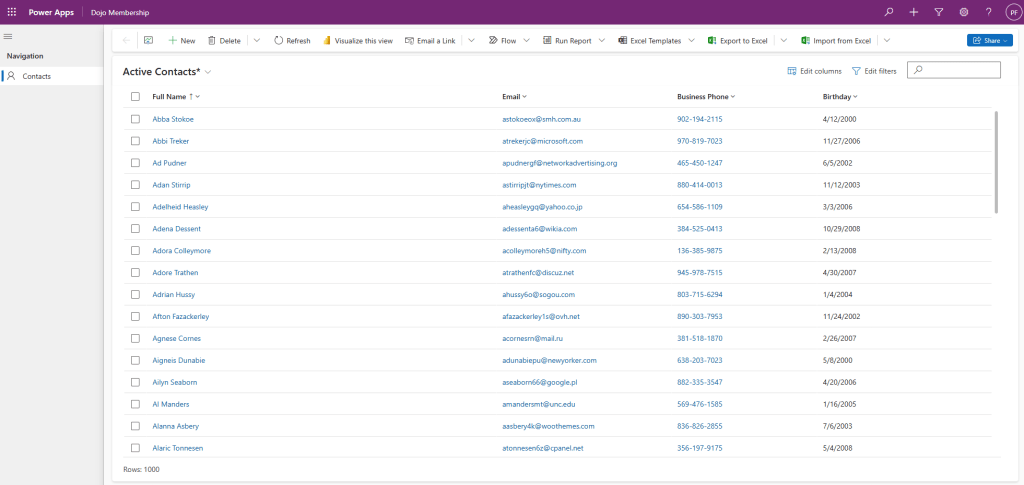
Once again, I’ve used the excellent Mockaroo service to generate dummy data here and used a dataflow to load in my data (see this post for a reminder on how to do that!). Our model-driven app View gives us the following functionality straight out of the box:
- Data is divided into pages, rather than all records in a long table.
- User can apply multiple filter criteria here:
- String operations on name, email and phone number
- Date operations on Birthday
- Pages take filter criteria into account
- User can sort by multiple columns
How hard would it be to replicate this in a canvas app? The aim of this post is to replicate as much of this functionality as possible to create the following:
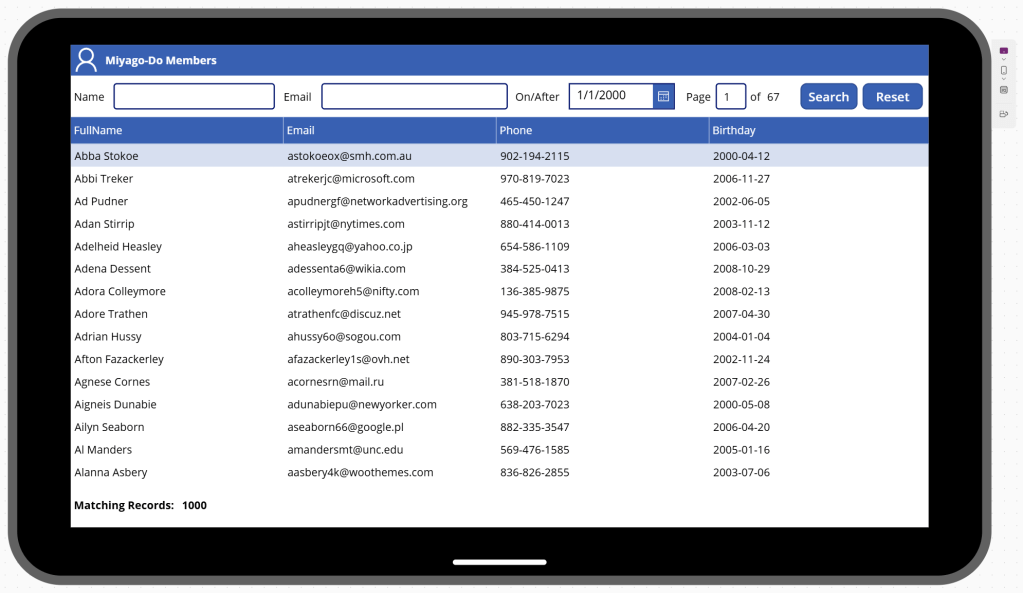
Let’s create a new canvas app in our Dojo Membership solution. As per the last post, I’ve added a blue header with an icon and a text label. On the canvas I’ve added the following controls:
- A text label – “Name”.
- A text input – renamed txtName.
- A text label – “Email”.
- A text input – renamed txtEmail.
- A text label – “On/After”.
- A Datepicker control – renamed dpOnAfter.
- A text label – “Page”
- A text input – renamed txtPageNumber.
- A text label – “of”
- A text label – renamed lblTotal – shown as 67 in the image below, will be dynamically populated.
- A button – renamed btnSearch and labeled “Search”
- A button – renamed btnReset and labeled “Reset”
- A text label – “Matching records:”
- A text label – renamed lblMatchingRecordsTotal – shown as 1000 in the image below, will be dynamically populated.
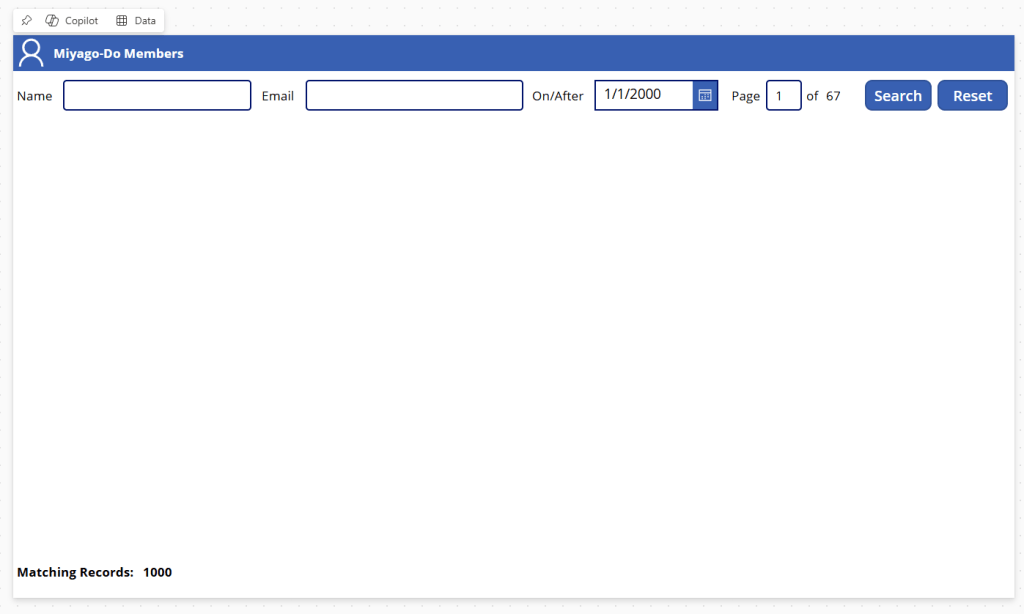
The intention here is to build an app that will allow the user to:
- Search for any records where the first name or last name of the member begins with the input from txtName.
- Search for any records where the email of the member begins with the input from txtEmail.
- Search for any records where the birthday of the member is on or after the input from dpOnAfter.
- The ability to select which page of filtered records to show by inputting a value into txtPageNumber.
I chose to omit the ability to filter by phone number, simply because I wanted all the search criteria on a single line and I was running out of space. Furthermore, I’ve limited the operations per search parameter:
- Name and Email are limited to the “begins with” operator.
- Date is limited to the “on or after” operator.
I’ve done this because you’ll quickly see the amount of effort that goes into getting these working and realise that this post would be much much longer to include all that! For the same reasons, I won’t implement the sorting mechanism, but will outline how it would be possible and the effort entailed. Remember – all of this functionality is available straight out of the box with model-driven apps.
Anyhow, let’s proceed by creating two Power Automate flows:
- Get Matching Contacts – will return the records that match all of the supplied filter criteria including page number.
- Get Matching Contacts Totals – will return the total number of records that match all of the supplied filter criteria and the number of pages of records available.


Leave a comment