
To implement delegation, we will create two Power Automate Instant flows:
- Service Workload – a flow to get the relevant service appointments for the currently logged in user.
- Update Service – a flow to update the service record when the Save button is pressed.
Let’s begin by creating the Service Workload flow (see this post for a reminder on creating Instant flows implementing try/catch error handling). We will use the following components:
- Trigger – Power Apps – When a Power Apps calls a flow (V2).
- Scope – Try
- Action – Dataverse – List rows
- Action – Response – rename as “Successful Response”
- Scope – Catch (run after Try failed)
- Action – Response – rename as “Failed Response”
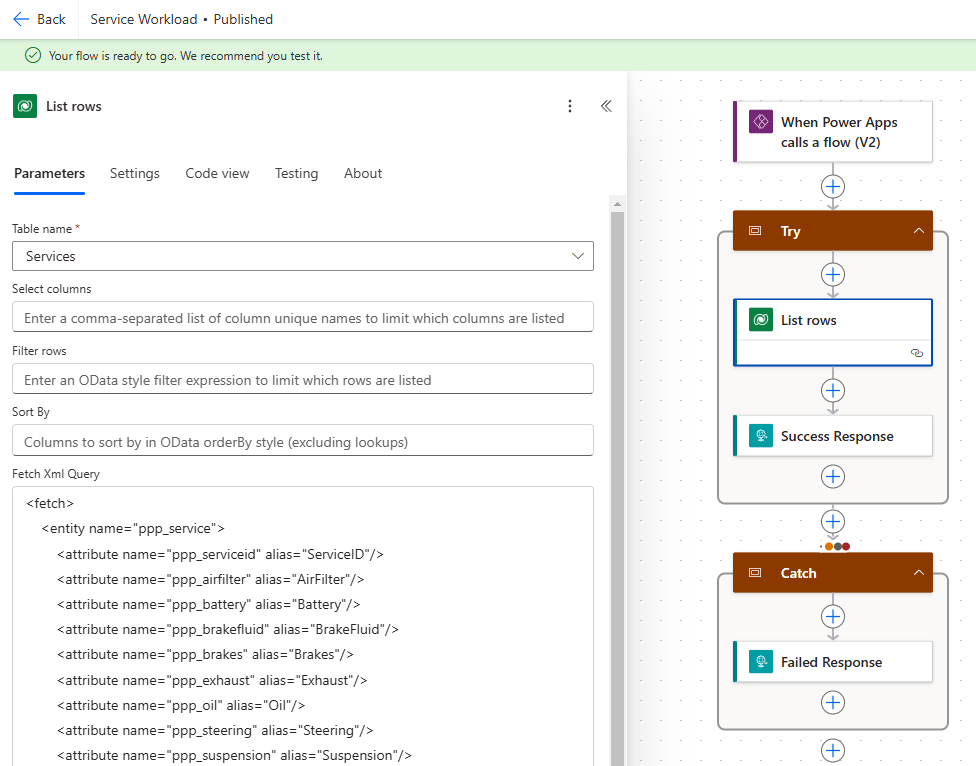
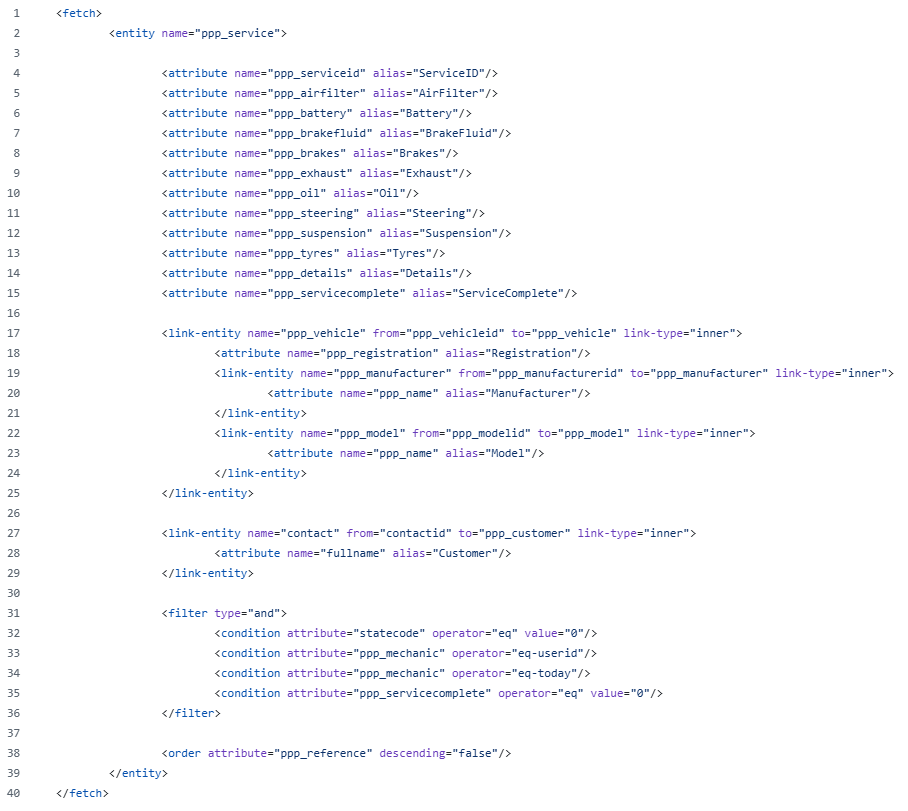
Within the List rows action, we are going to set the Table name property to Services and the Fetch Xml Query property to the XML found here. We are using Fetch XML again to perform a query to fetch the data we need across multiple tables:
- Service – the appointment details and service check properties
- Vehicle – the vehicle being serviced
- Manufacturer – the manufacturer of the vehicle being serviced
- Model – the model of the vehicle being serviced
- Contact – the detail of the customer who booked the service
Rather than have five separate queries (one for each table), we use Fetch XML to join all tables we need. Note the use of the following operators:
- statecode eq 0 – active records only
- ppp_mechanic eq-userid – the flow will run as the user who initiates the flow, which will be the canvas app user. This condition fetches only those rows for the user running the flow.
- ppp_servicedate today – only those rows where the Service Date is today.
- ppp_servicecomplete eq 0 – only those where Service Complete is No.
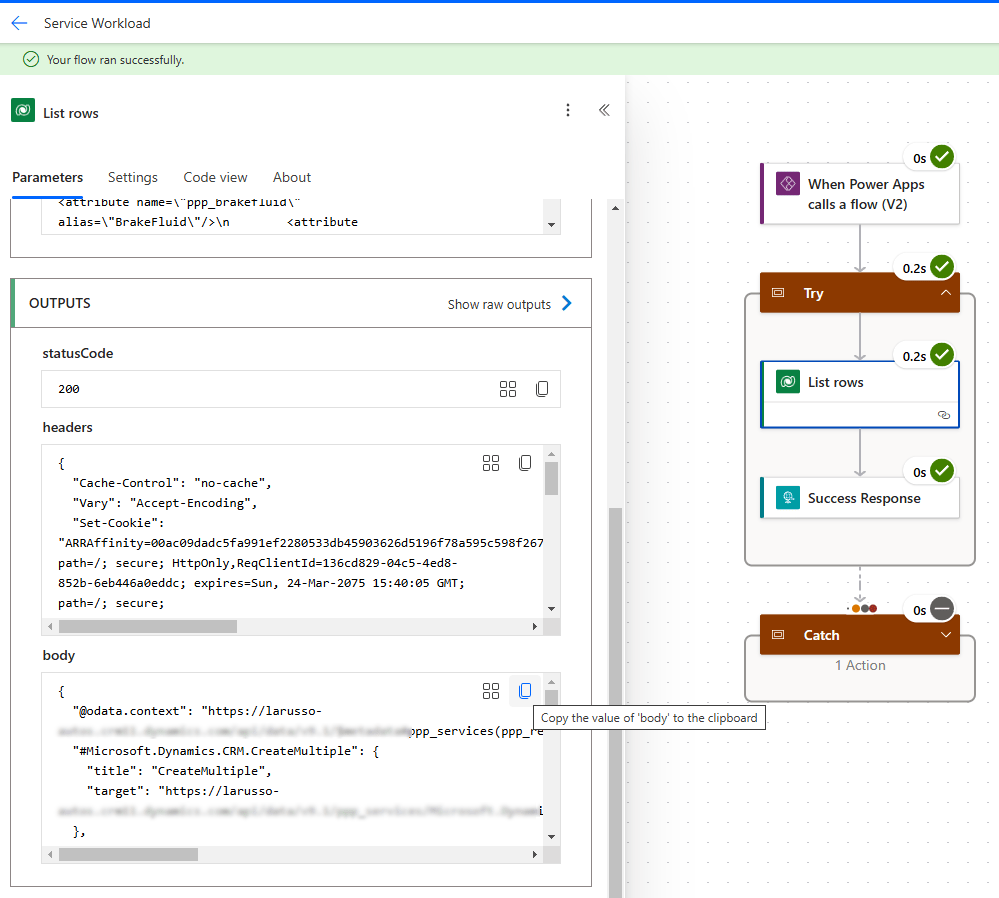
Once complete, click on Test to run the flow. If there are records returned, click on the List rows action, and copy the value of Outputs body to the clipboard.
Next, we want to tidy this up a bit. I use https://jsonformatter.org/ to format the output in an easy to read manner, like so:
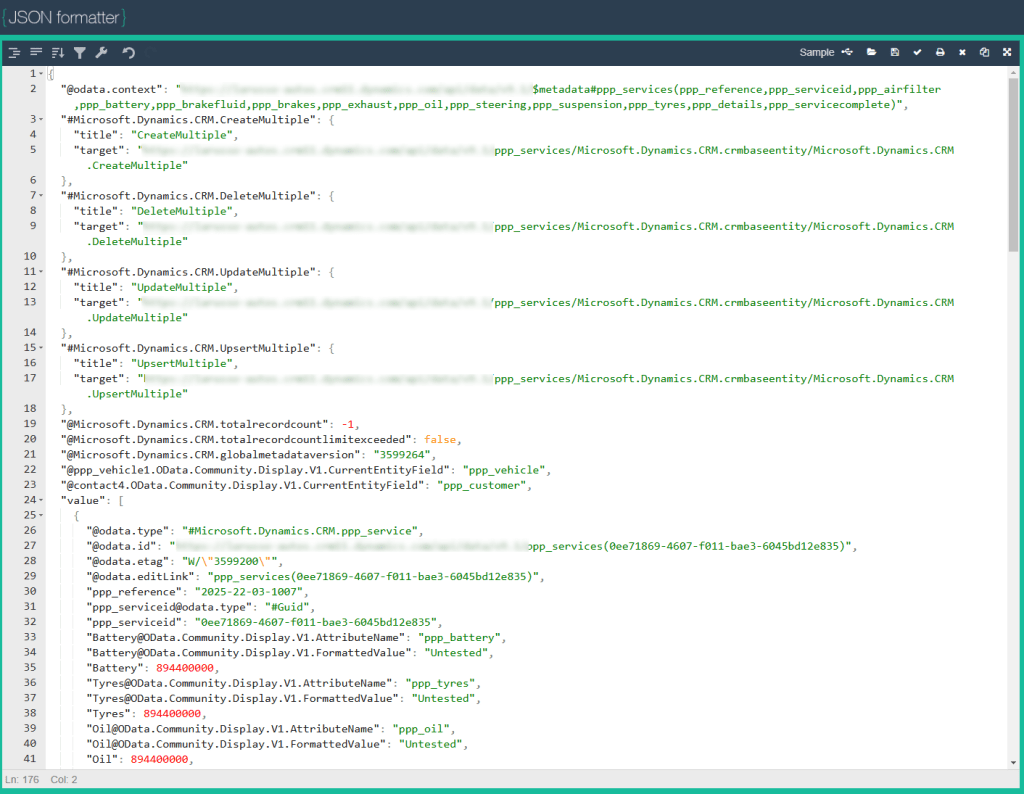
I’m only interested in the value array (see line 24 onward in the above image). I will copy these lines to the clipboard.
Go back to our Power Automate flow and select the Success Response action and fill in as follows:
- Status Code – 200 (successful response).
- Body – List rows body/value
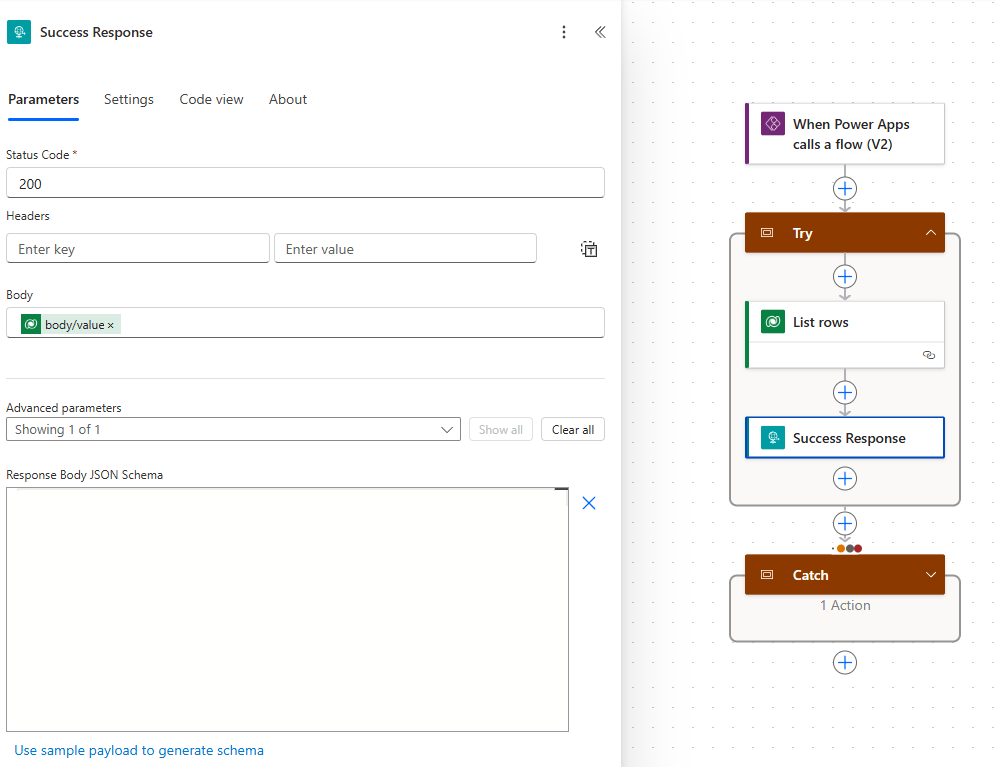
Click on the Use sample payload to generate schema link, and paste in the JSON we copied earlier. On save, the Response Body JSON Schema should look like the following:
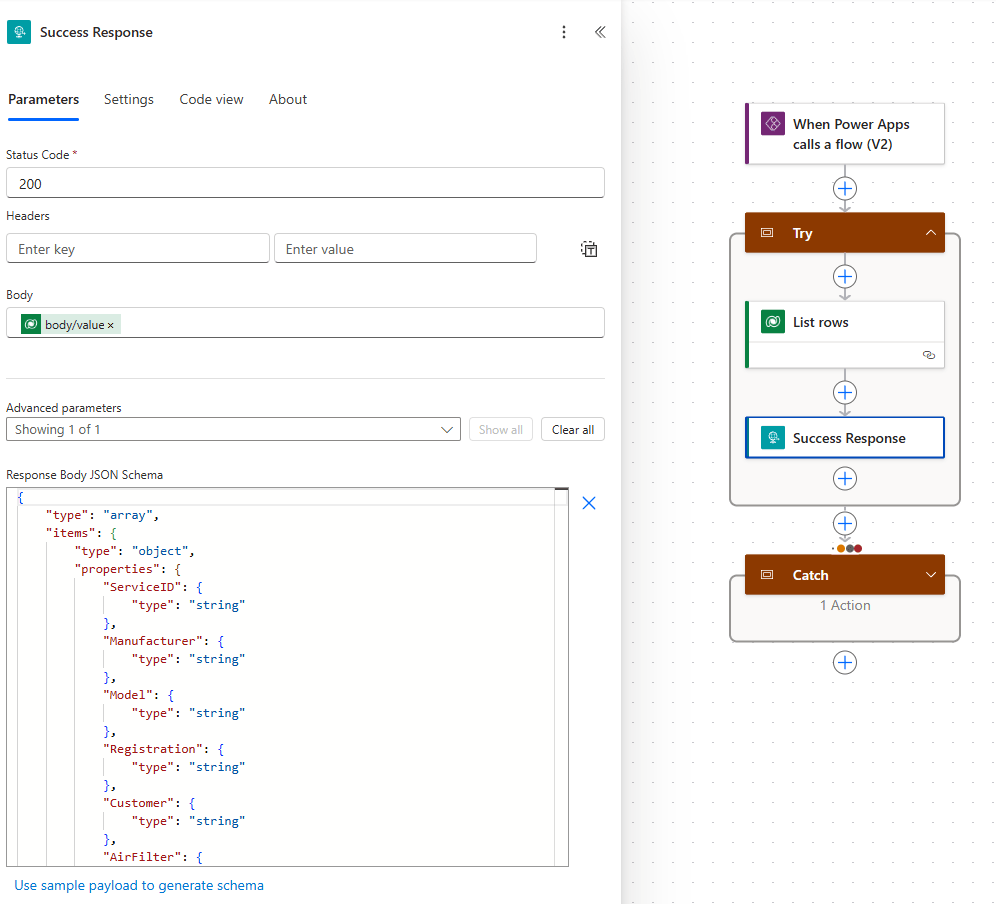
Now select the Failed Response action and fill in as follows:
- Status Code – 500 (unsuccessful response).
Save and publish the flow and add to our solution as before. Now we go back to our canvas app and click the … link on the components bar and select Power Automate.
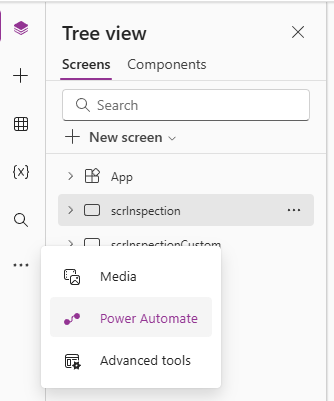
Search for our Service Workload flow to add to our app.
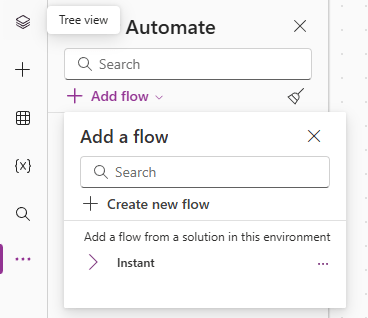
And we now have a handle on our flow that we can reference in the formula bar.
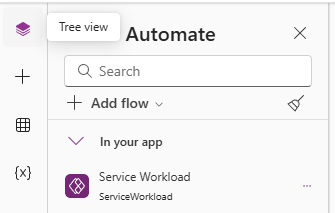
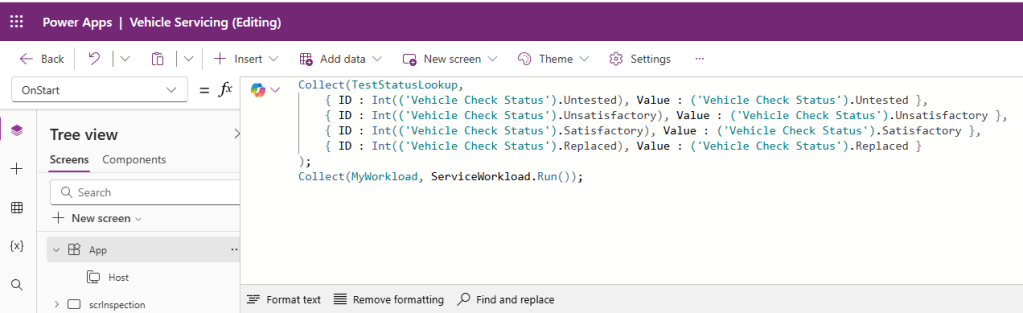
Next, we want to call this flow when the app starts. Select the App from the component window, and update the OnStart property by appending:
Collect(MyWorkload, ServiceWorkload.Run());
This runs our Power Automate flow and sets the output into a collection called MyWorkload.
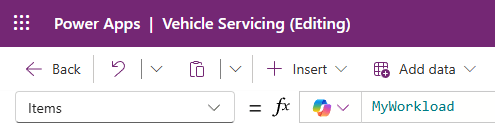
Then we update the Items property of the Gallery to be MyWorkload.
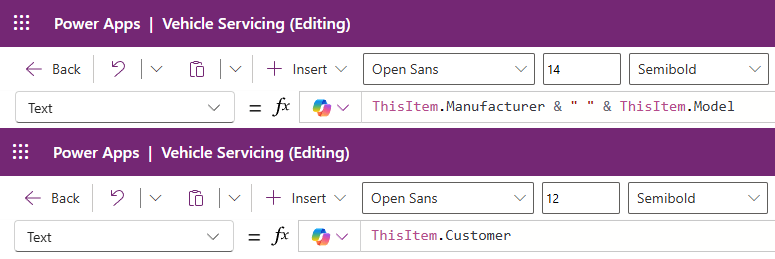
Now we need to set the text on the Gallery item labels to match the field names returned by our flow:
- ThisItem.Manufacturer & ” ” & ThisItem.Model
- ThisItem.Customer
We also need to update our Slider values to match, specifically those sliders where the property is more than one word, such as Air Filter and Brake Fluid:
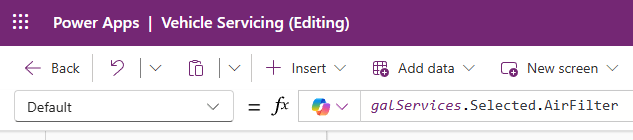
Now when our app loads, it runs our Power Automate flow to fetch only the records we need. Note that in our scenario, we are not limiting the total number of records we retrieve from Dataverse – it is assumed that this will be a low number because we have a limited number of service appointments that one mechanic can do in a day.
In a later post we will look into delegation to limit the number of records we wish to retrieve and implement pagination, but for our scenario, this is overkill.
This particular setup of using a Power Auutomate flow to fetch records can be used when the data source is something other than Dataverse – consider a canvas app that uses a flow with the SQL Server connector to execute a stored procedure to get the required records. This is much more performant that adding multiple SQL Server tables as data sources to the canvas app.
Our canvas app still has a handle on the Services table though – we’re currently using it to Patch updated records. Let’s create the flow to replace this.

 Power Platform Pete
Leave a comment