
Final steps – we want to share this app with the LaRusso Autos mechanics. Select our new canvas app from the solutions view. Click the three dots and then the Share option.
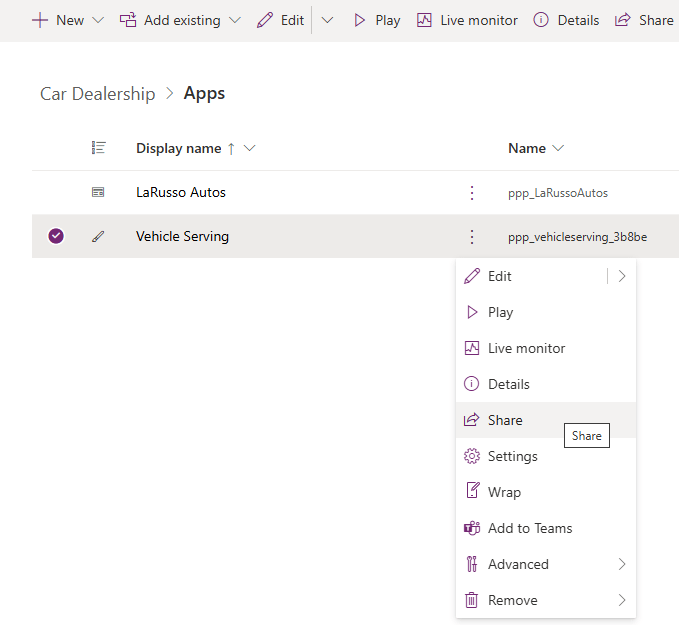
From the dialog that appears, we select the LaRusso Autos Mechanics team, as outlined in our previous post on Teams.

And we’re done! Yes, it’s a pretty basic app with room for improvements which we will cover in upcoming posts. However, today we have covered:
- Galleries
- Forms
- Working with layouts
- Working with the formula bar
- Renaming elements
All of which is the basis for what we want to do next.

 Power Platform Pete
Leave a comment