
We’ll begin by copying our Create Service Appointment method. Click the Save as button, and from the dialog that appears, set the Flow name to Instant – Create Service Appointment.

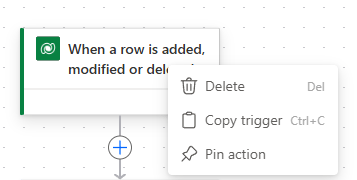
When the flow canvas loads, right click on the When a row is added, modified or deleted Trigger and click on Delete.
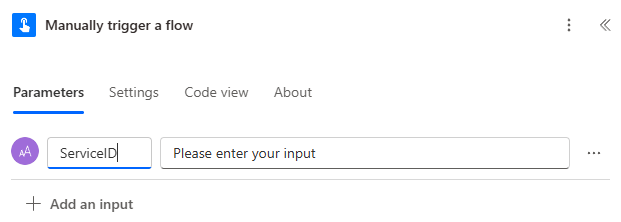
Click to add a new Trigger – select the Flow button for mobile connector and the Manually trigger a flow Action

Add a Text input as before, name it ServiceID.
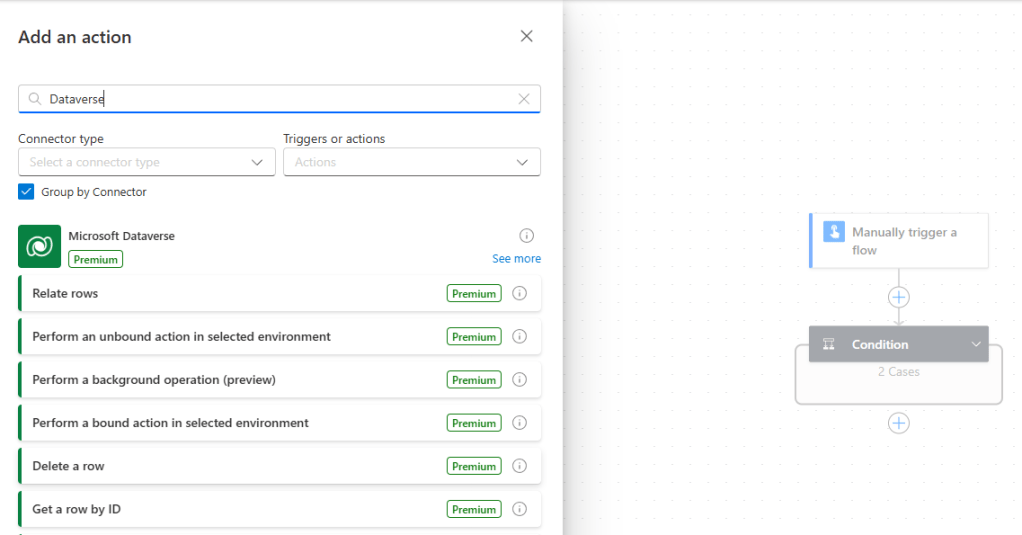
The previous Dataverse Trigger gave us access to the Service record that triggered the flow. Because we removed that Trigger, we need at fetch the Service record from Dataverse now – add in a Dataverse connector below our new Trigger, and select the Get a row by ID Action.
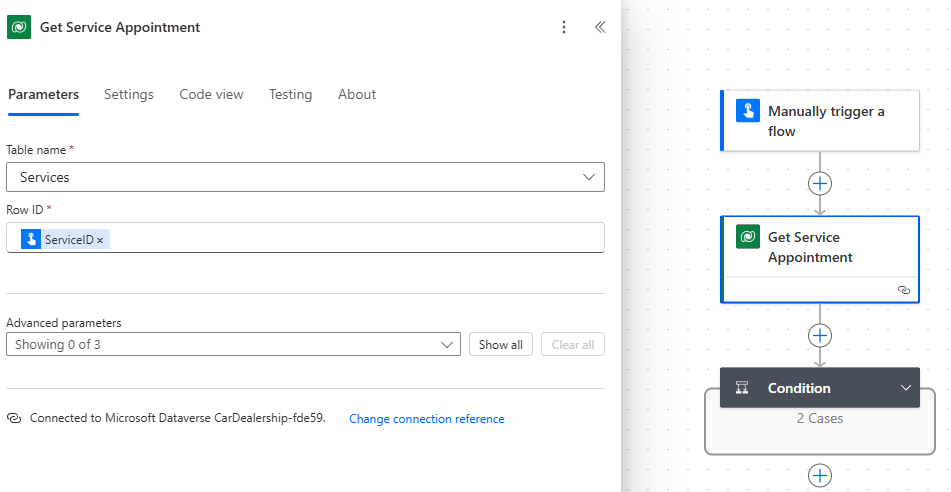
Complete the parameters as follows:
- Rename the Action to Get Service Appointment
- Table name – Services
- Row ID – Select ServiceID from the Manually trigger a flow Trigger (previous step, our text input).
At the moment, the following Actions in our flow reference values that no longer exist because we removed the Dataverse trigger:
- Condition
- Get Customer
- Get Mechanic
We need to update all these Actions to reference the output from our new Get Service Appointment Action. We begin by updating the Condition to reference the Mechanic (Value) from our Get Service Appointment Action.
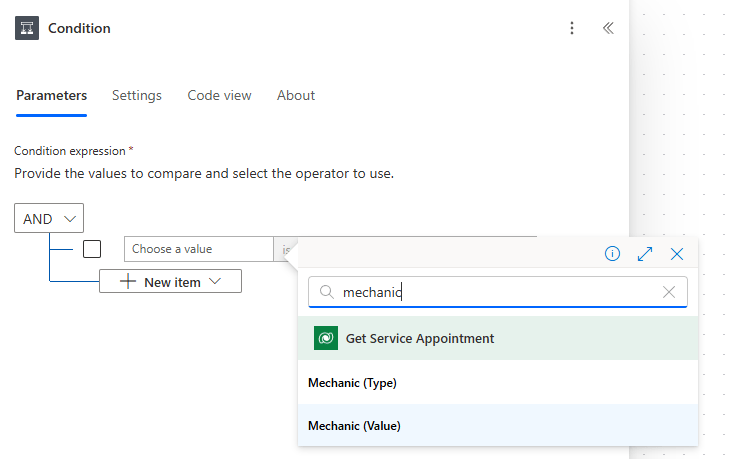
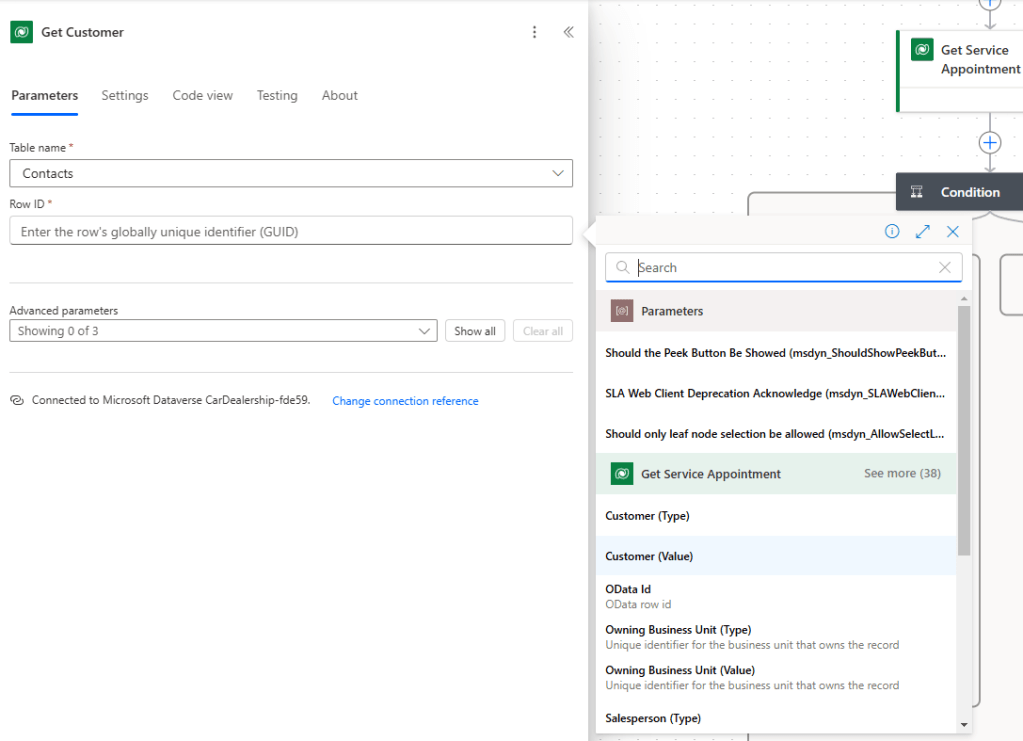
Then we update our Get Customer Action to reference the Customer (Value) from our Get Service Appointment Action.
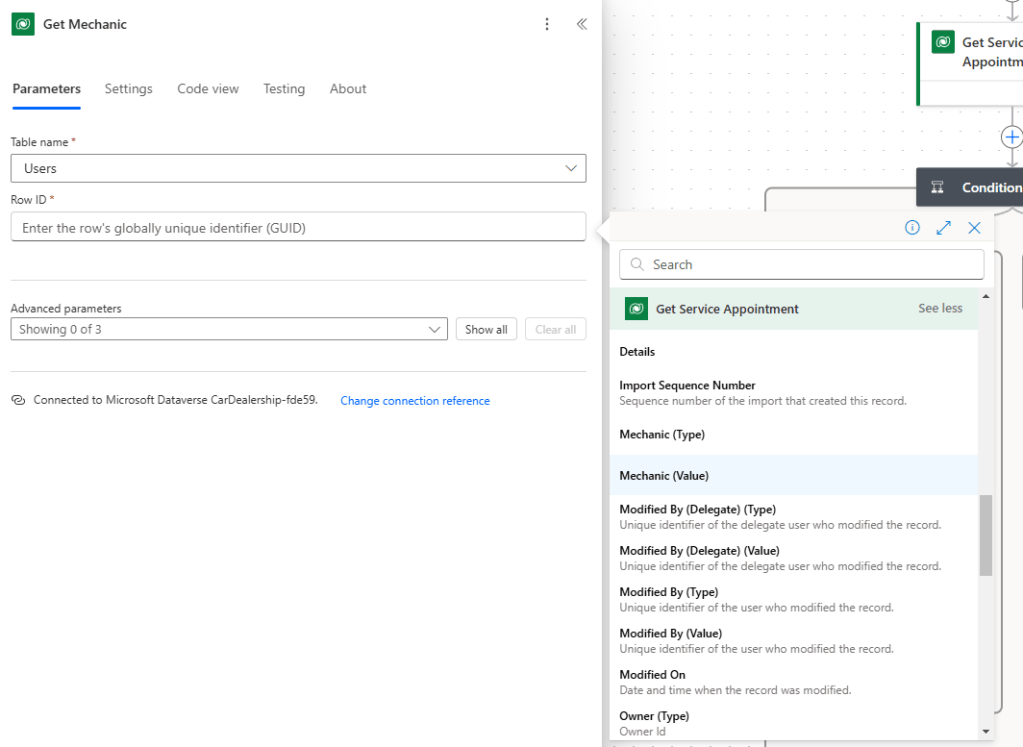
Then the Get Mechanic Action to reference the Mechanic (Value) from our Get Service Appointment Action.
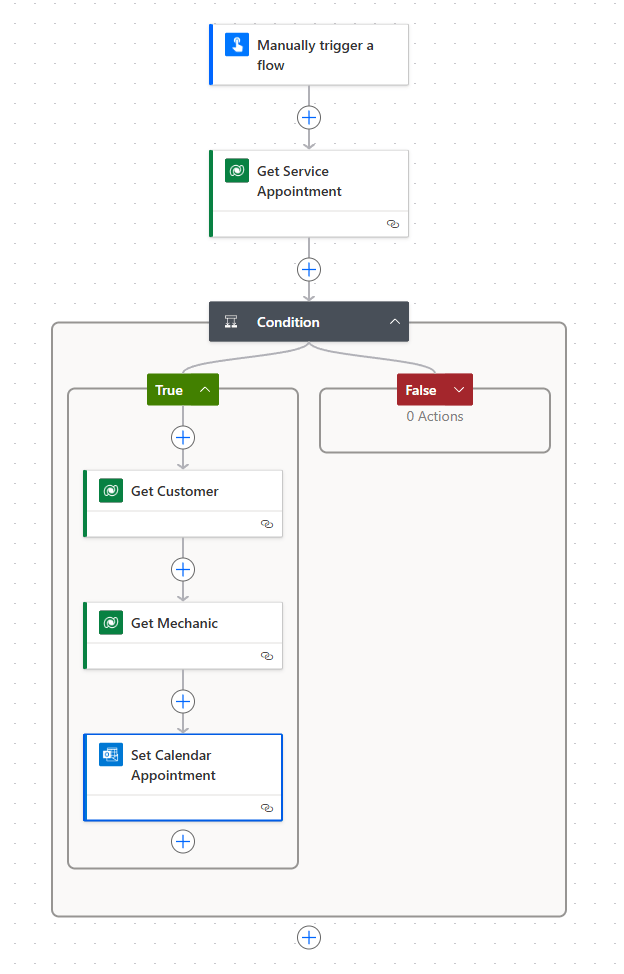
This leaves us with the following flow.
However, we need to be careful here. We intend to pass the ID of the affected record from the Service table as an input parameter – we cannot guarantee that this will always be called with a valid value. As such, we should build in some error handling into our flow…

 Power Platform Pete
Leave a comment