
In our previous post, we introduced Dataflows and demonstrated how we can use them to create new records in bulk. However, that example was limited to creating data in a single table. What happens when we need to import data into multiple tables, and maintain relationships between them?
Consider the following. Daniel LaRusso has recently acquired the business of his cross town rival Tom Cole. He wants to add all vehicles that he has acquired from Tom Cole into his own inventory.

What challenge does he face using Dataflows? Here’s a quick reminder of our data model from a much earlier post:

When we import the list of vehicles into our LaRusso Autos Dataverse tables, there are a few things to consider:
- When we import a Vehicle from our dataset, we must map it to the correct Manufacturer and Model.
- If the Manufacturer is not already in our Dataverse table, it must be added and mapped to the Vehicle.
- If the Model is not already in our Dataverse table, it must be added and mapped to the Manufacturer and the Vehicle.
With all of the above in mind, it is understood that we are entering data into three different Dataverse tables using a single dataset. Our approach should be thus:
- First, we must add all new Manufacturers.
- Second, we add all new Models and map them to Manufacturers (old and new).
- Lastly, we add all Vehicles, mapping in the Manufacturer and Model.
Mapping is a important part of this process – without a mapping strategy, our Dataflow will add all records to the respective Dataverse tables with no relationships in place:
- Models will have no parent Manufacturer
- Vehicles will have neither Manufacturer nor Model set
In traditional databases, rows in the Model table would have a numeric Primary Key. Correspondingly, rows in the Manufacturer table would have a numeric Foreign Key with a value that would correspond to a Primary Key value on the parent (Model) table.
For instance, we might have a Manufacturer table like so:
| ID | Name |
| 1 | Audi |
| 2 | BMW |
| 3 | Ferrari |
| 4 | Honda |
And a Model table thus:
| ID | Name | ManufacturerID |
| 1 | A6 | 1 |
| 2 | 5 Series | 2 |
| 3 | M3 | 2 |
| 4 | Testarossa | 3 |
| 5 | NSX | 4 |
In this table, ManufacturerID is a Foreign Key referencing the ID column of the Manufacturer table, and so we have:
- Audi A6
- BMW 5 Series
- BMW M3
- Ferrari Testarossa
- Honda NSX
Dataverse uses random strings called GUIDs instead of integers for Primary Keys, and we can’t predict what value they will be assigned when records are created (unlike numeric keys, which are usually an increment on the previous value).
When entering a new Model, we would like to have a reference to the parent Manufacturer ahead of time. To do this, we use alternate Keys on our Dataverse tables.
Navigate to out solution view and select the Manufacturer table from the side navigation. From the top ribbon select + New > Column

From the dialog that appears, enter the following values and then click Save.
- Display name – Manufacturer Code (ManufacturerID is in use already)
- Data type – Whole number
- Required – Optional (if you want to make this mandatory, it must be added to forms for entry later)

From the top ribbon, select + New > Key

From the dialog that appears, enter the following and click Save.
- Display name – Manufacturer Key
- Name – ManufacturerKey (my prefix here is ppp_ for my chosen Publisher).
- Columns – select Manufacturer Code

Next, we need to assign some values. Click on the “More” column

From the dialog that appears, uncheck Select all and select the following columns and click Save:
- Name (Primary)
- Country
- Manufacturer Code

The selected columns are shown, and we click on the Manufacturer Code column and begin adding values. Be sure to give each row a unique value.
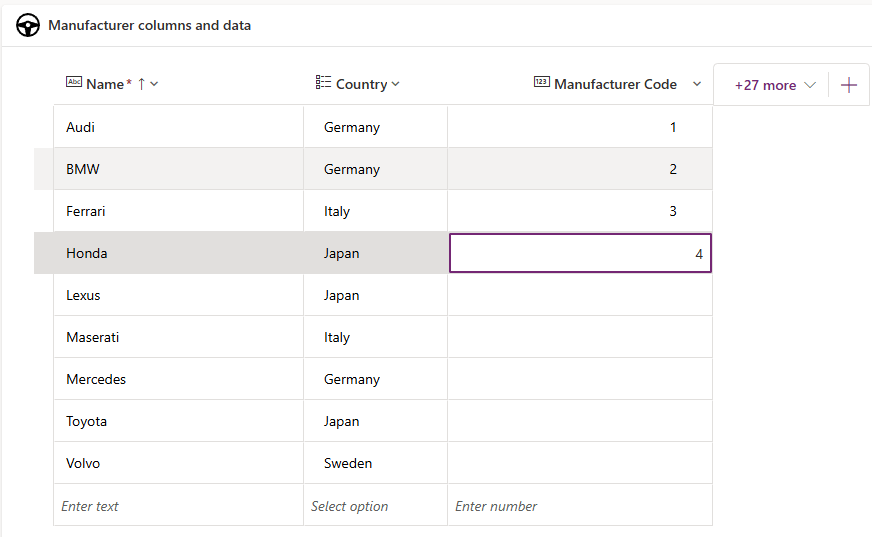
Now when we enter data, we can use the value of Manufacturer Code as a proxy for the ID of the Manufacturer instance. This is also very useful in a multiple environment setup as the values of GUID can change from environment to environment, but the Manufacturer Code can be fixed.
Repeat the above process for the Model table:
- Add a new number column named Model Code
- Add a new key named Model Key that references the new Model Code column
- Populate the values of Model Code

Note that we do not need to add any new columns nor keys to the Manufacturer table.
So we have our plan. The next post will focus on the data import.


Leave a comment