
One of the great things about Dataverse is the range of tables that are available out of the box. You don’t need to create a table for contacts, addresses or users, because they already exist by default. This of course means that we can get straight to building our model-driven apps!
However, when using these tables, you should consider other users of your environment – do they need to use the same tables? Let’s imagine we want to build a simple model-driven app using the pre-existing Contact table to manage club memberships (members of Miyagi-Do, say). If that app is hosted in the same environment as another app using the same Contact table (perhaps LaRusso Autos customers), then both apps will see mixed datasets.
This also gets messy if Power Automate is used to update records – the updates will apply to the datasets of both apps, because it’s the same dataset!
Let’s create our model-driven app for registering members of the Miyagi-Do Dojo. For the above reasons, we will create it in a new environment (see more on this in a previous post)
As per our first lesson, let’s go to a new environment and create a new solution. Click on Solutions from the side navigation, and + New Solution from the ribbon. Follow the steps to create a new publisher as before.

Within the solution view, select Tables from the side navigation, then Add Existing > Table

Select the Contact table and click Next. Then click Add on the following screen.

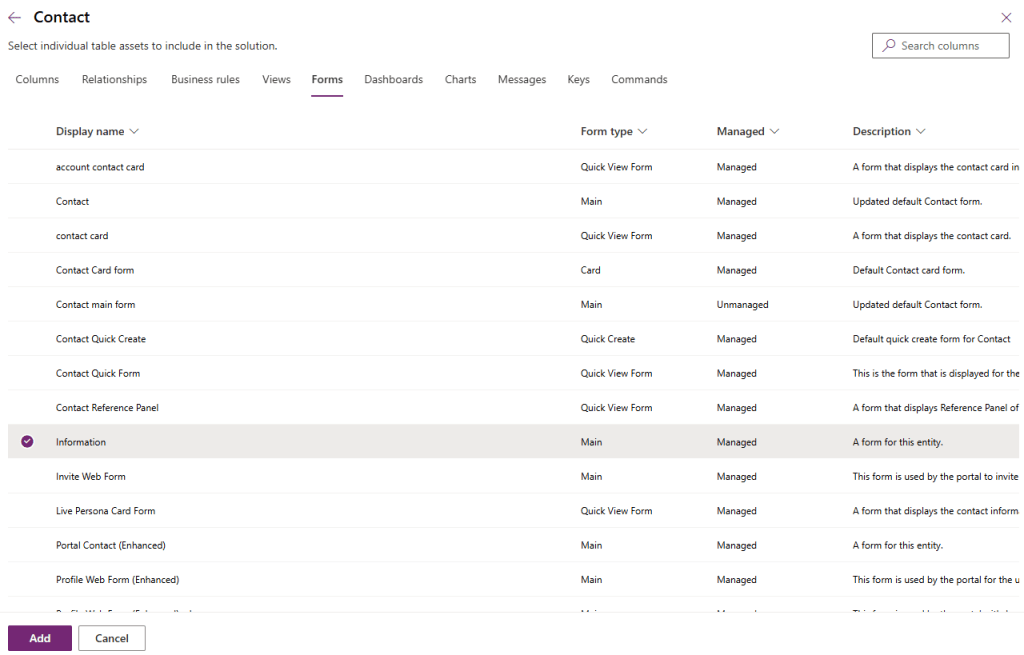
From the side navigation, select Tables > Contact > Forms. Note that there are no forms for this table in our solution, so click on + Add existing form from the top ribbon. From the dialog available, a range of forms are available. For simplicity, let’s just add the Information form and click Add.
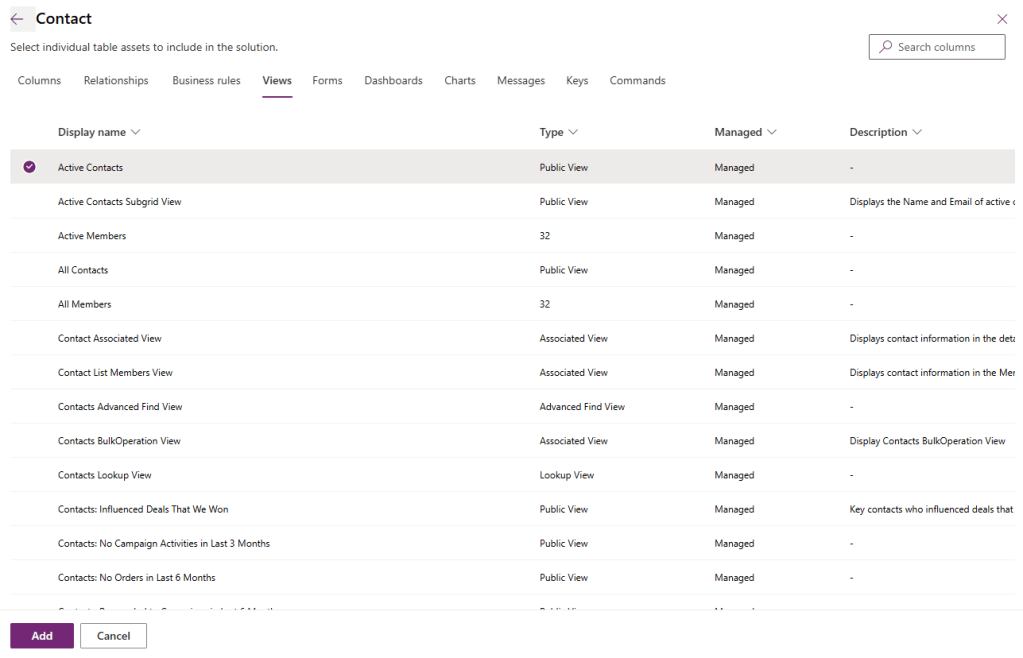
From the side navigation, select Tables > Contact > Views. Note that there are no views for this table in our solution, so click on + Add existing view from the top ribbon. From the dialog available, a range of views are available. For simplicity, let’s just add the Active Contacts view and click Add.
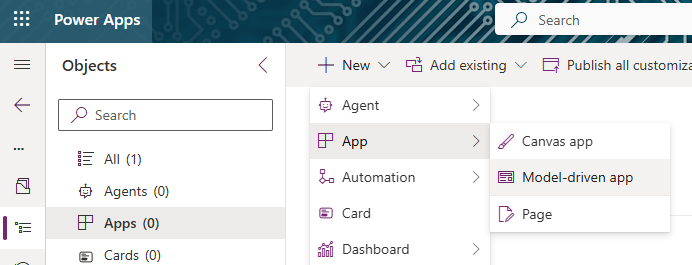
From the side navigation in the solution view, select Apps, then + New > App > Model-driven from the top ribbon.
Give the app a name from the popup dialog and click Create.

As in our first post, click the + Add page button, and select Dataverse table. Scroll to our Contact table and add.

Click Save and then Publish. And we’re done!


Leave a comment