
Daniel LaRusso is a many of many talents. Not only does he operate his own successful car dealership, but he runs the Miyagi-Do karate dojo!
We’ve already shown what Power Platform can do for the LaRusso Auto business, but what could we do for Miyagi-Do? Over the next few lessons, we’ll look at creating an app to manage dojo members, but the first thing to consider is our Power Platform environment strategy.
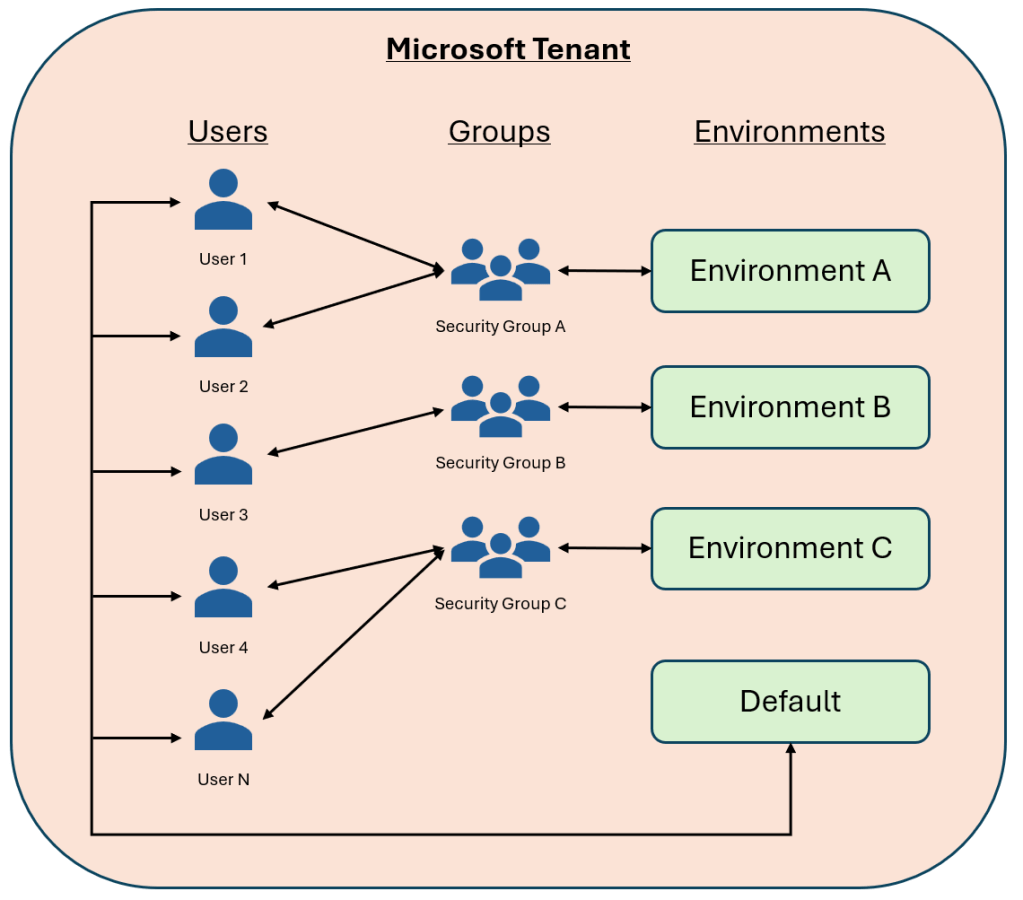
When it comes to Power Platform, there are three things of interest to us in any Microsoft tenant:
- Users – everyone with a Microsoft login for the tenant domain
- Groups – each group is a collection of users with something in common, such as “Legal department” or “Marketing”
- Environments – deployment areas for our Power Platform solutions.
All tenants have a default environment that all users of the tenant can access. If a user has sufficient privileges, they can see everything in the environment – apps, flows, chatbots, data…etc. They can add, delete and amend as they desire. This should set alarm bells ringing, as it is not in keeping with the principle of least access.
The least access principle states that a user should have only the functionality they need – they should be limited to the apps and data they need, and unable to add, delete or amend data if their role does not require them to do so. In the above example, someone from Marketing should have little or no access to the apps and data used by the Legal department. Thankfully, Power Platform has this access principle covered.

Environments should be created for specific groups of users – i.e. they fulfill a common need. Users of the environment have a need to share apps and data, although there is still the capability to have tiered access within an environment (more in later posts).
When we create a new environment, we should assign a security group to the environment. A security group is merely a type Entra (formerly known as Active Directory) group which we can use to limit access – put simply, if a user is a member of the security group attached to an environment, they can use that environment. Apps and data may be shared with that user. If they are not a member of the security group, they cannot use the environment nor its resources.
What if a user needs to access multiple environments? Simple! Just add them to each of the relevant security groups.
With this knowledge in hand, Daniel LaRusso creates separate environments for his LaRusso Autos and Miyagi-Do groups as follows:
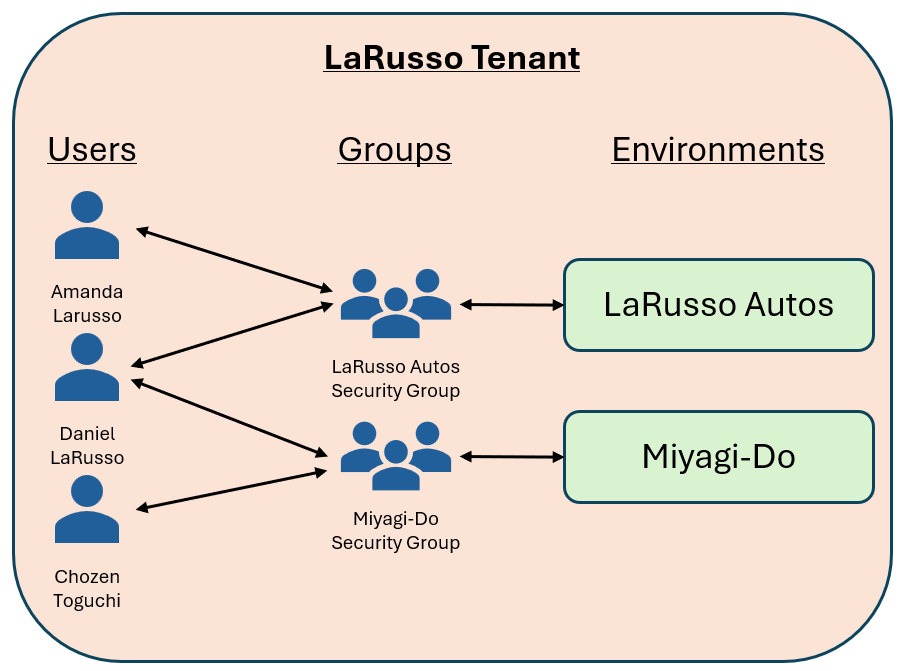
As we can see:
- Amanda LaRusso is a member of the LaRusso Autos group and only has access to the LaRusso Autos environment
- Chozen Toguchi is a member of the Miyagi-Do group and only has access to the Miyagi-Do environment.
- Daniel LaRusso is a member of both groups and has access to both environments.
This approach gives the best segregation of data and apps. It would be possible to have all apps and data in a single environment – indeed, some system admins adopt this approach to minimise the number of environments they manage – but to do so will add additional complications to security management within a given environment, having knock on effects on:
- Security Roles
- Usage of Standard tables
- Data Loss Prevention Policies
- Managed environments
All of which we will cover in later posts!

 Power Platform Pete
Leave a reply to Creating Custom Views on the User table with XRMToolbox – Power Platform Pete Cancel reply