
The Manufacturer Pages
When our app launches, the Active Manufacturers view should be shown by default (if not, you can select from the navigation bar). As we have no Manufacturers, the table is empty. Click on the + New button in the ribbon to be taken to the Manufacturer form.
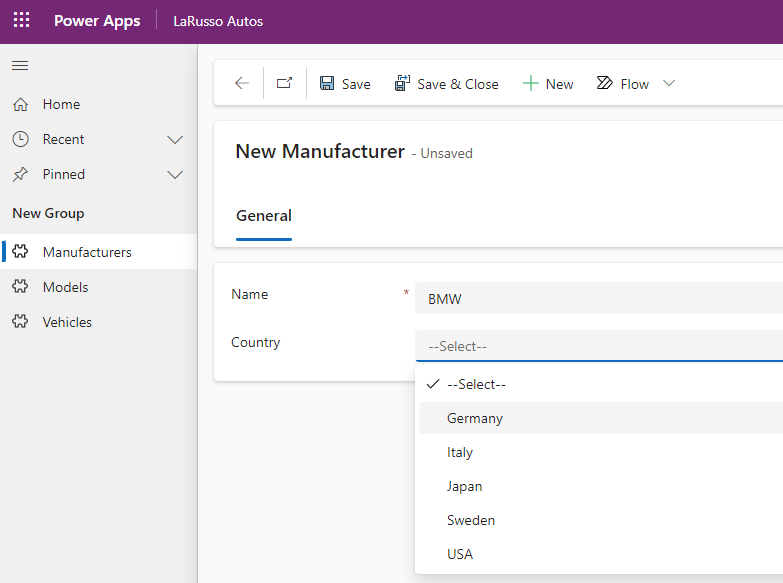
I’m adding BMW as my first entry. Click Save & Close to save the record and return to the Active Manufacturers view. If I click BMW from there, I will return to this record where I may edit it. Instead, I’m going to click + New and add more records, so that my Active Manufacturers view looks like this.
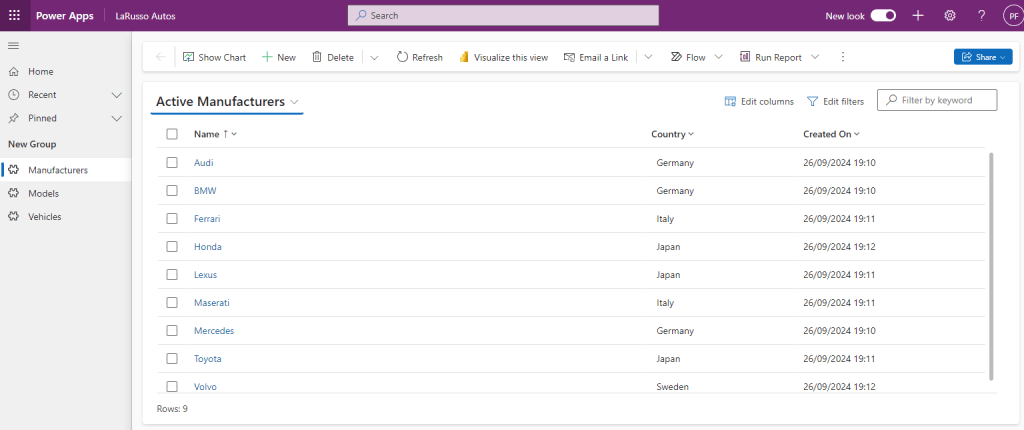
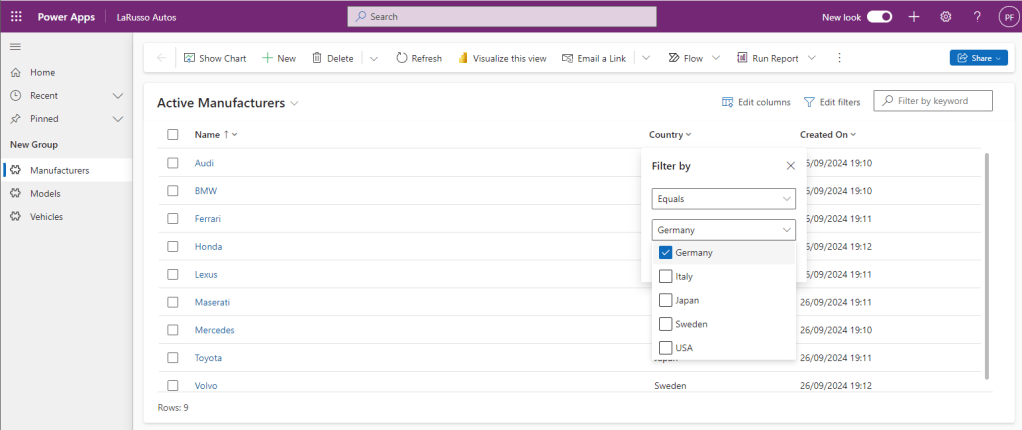
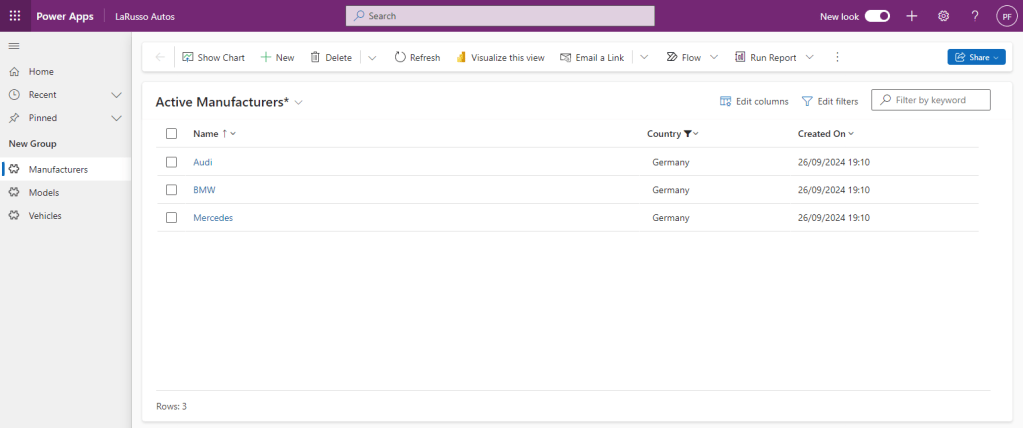
Now we come to the real magic of model-driven apps. Let’s say I’m only interested in seeing the Manufacturers from Germany. If this was a web page that I was coding from scratch (or even a Canvas app for that matter), I would have to create bespoke functionality to pass the key-value pair of Country-Germany to a back end service, which in turn would have to search the underlying dataset for applicable records, then order them by the chosen order by column (either ascending or descending), and show only those records for the selected page (even typing this up has tired me out). With model-driven apps, we have such filtering available out of the box.
And the list of results is returned automatically without any bespoke code.
Now let’s look at Models.
 Power Platform Pete
Leave a comment