
Building the Model Table
Building this table is pretty similar to the Model table, but with the addition of creating a relationship between the two tables. That relationship is thus:
Many Models are produced by One Manufacturer.
As before, let’s select Tables from our solution view side navigation. Click + New -> Table -> Table as before to display the New table dialog, and enter the following values before clicking Save.
- Properties tab
- Display name – Model
- Plural name – Models
- Primary column tab
- Display name – Name (will appear by default)
- Display name – Name (will appear by default)
From the side navigation, expand Tables -> Model and select Columns. As before, let’s add a new column of type Choice for Chassis Type:
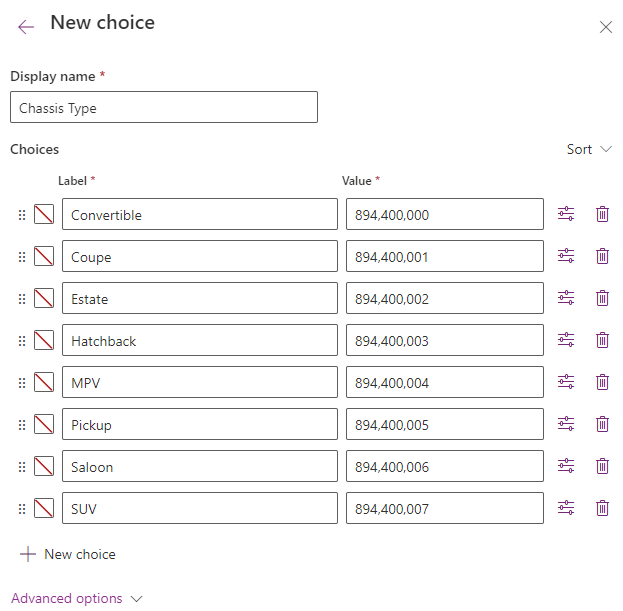
As before, clicking save will display the New column dialog again, where we can select our new Choice list from the Sync this choice with dropdown value. Save the column.
Now we’ll build the relationship between our two tables. From the side navigation, expand Tables -> Model and select Relationships. The following screen is displayed:
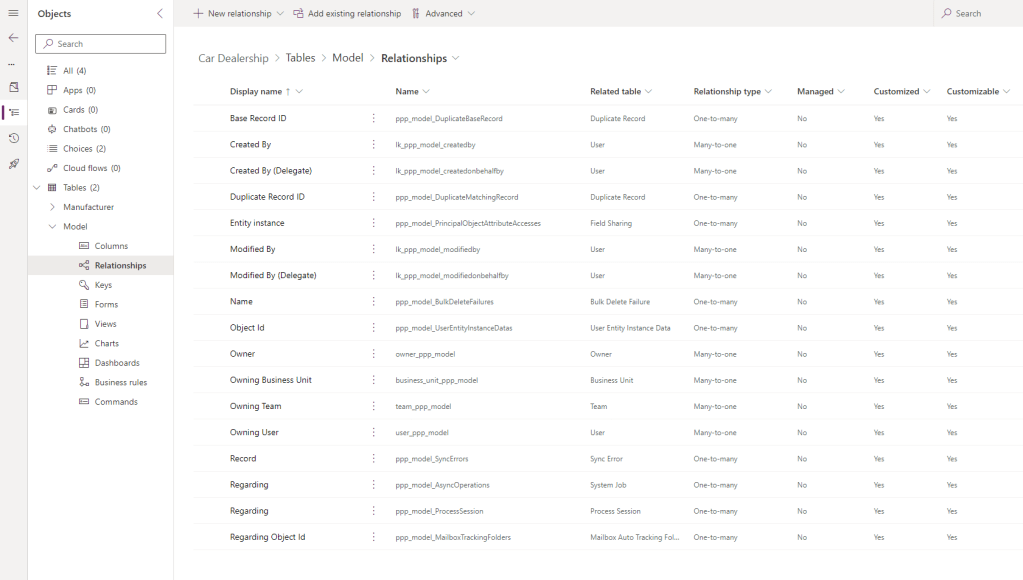
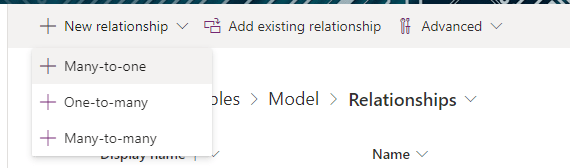
As before, Dataverse creates several Relationships by default when a new table is created. For instance, Created By and Modified By – these columns on table are actually lookup references to the User table, which in itself is a default table created by Dataverse. From the top navigation, select + New relationship -> + Many-to-one:
This will show the Many-to-one dialog. Under Current (Many), Model is selected as the Table. Under Related (One) select Manufacturer from the dropdown list that is shown:
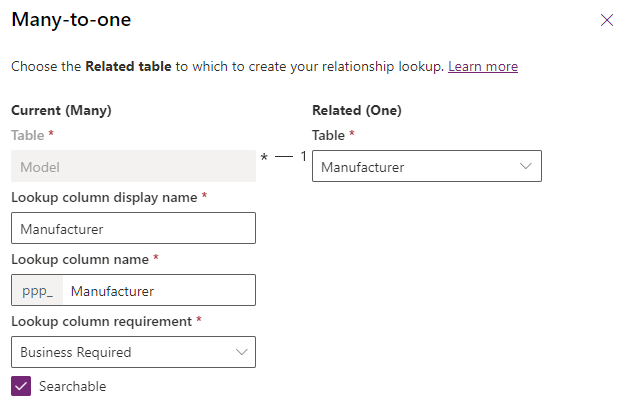
- Lookup column display name – leave as Manufacturer.
- Lookup column name – leave as Manufacturer (note the Publisher prefix shown).
- Lookup column requirement – change this to Business Required.
Click Done. That’s our second table ready to go. Let’s move onto the Vehicle table.

 Power Platform Pete
Leave a comment