
Building the Manufacturer Table
If you followed the previous step, the following dialog will appear:
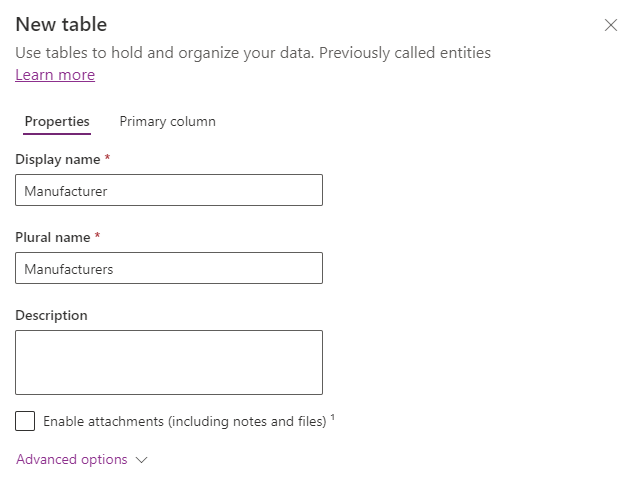
Note that I have filled in the required fields. If we click on Advanced options, we have a host of options available to us (a post for another day when we’re feeling more advanced), but of interest is the field Schema name:
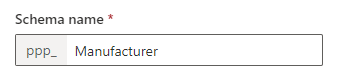
The default value here is the Display name of our table prefixed by our Publisher prefix. This arrangement allows us to have multiple tables with the same Display name in any development environment, as long as they all have different Schema names. This is why the value of Publisher prefix is important.
If we click Primary column at the top of the dialog, we are required to set the Display name of the Primary column:
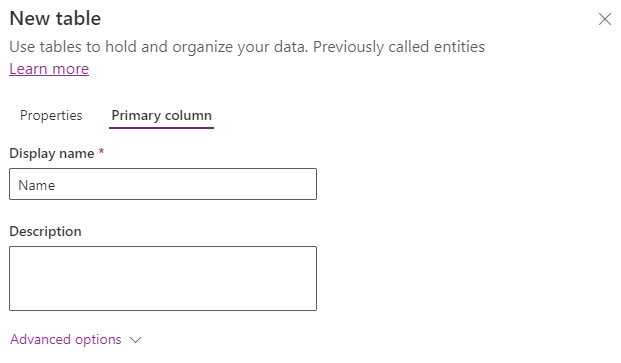
By default, this value is Name. Note that the Primary column is not the same a traditional database Primary Key value – that is a separate field created by Dataverse in the background that we don’t need to worry about now. Think of Primary column as the main descriptor field when referring to any row in this table i.e. instead of saying “The record with ID=1” we might say “The Audi record“; we refer to the row by some meaningful value. Click on Advanced options to see the following:
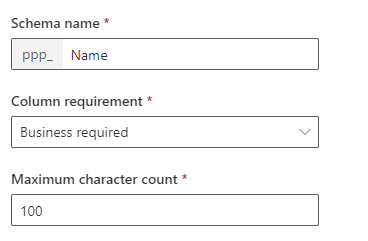
Again, we have the Schema name defaulting to the Display name prefixed by the Publisher prefix. The Column requirement is defaulting to Business required – that is, users must supply a name when creating a row in the Manufacturer table. Lastly, as this is a text field, there is a default Maximum character count of 100 characters. All of these values are sufficient for our needs, so we can click Save. On successful save, the following screen is displayed.
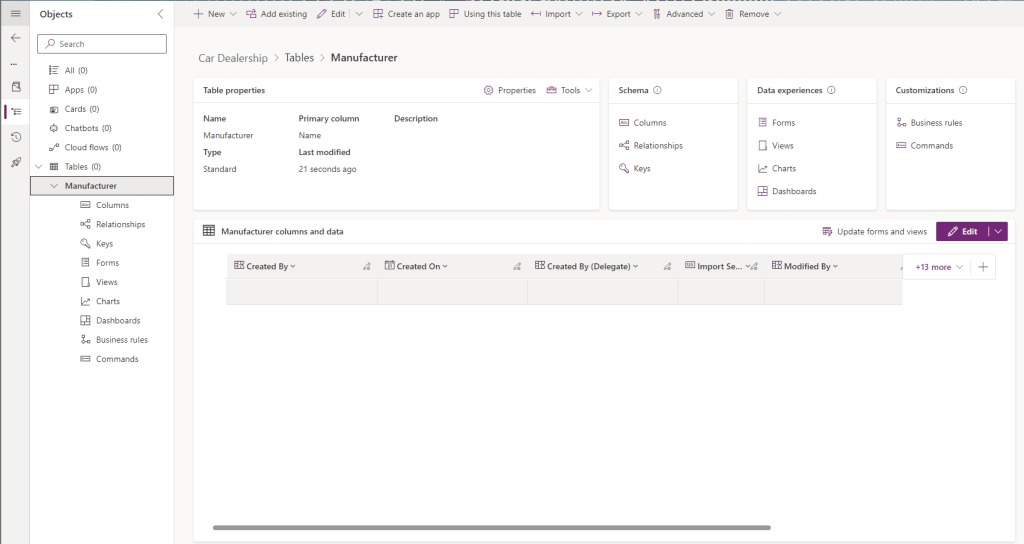
Clicking on Tables > Manufacturer on the side navigation displays a range of options, click Columns to see the following screen.
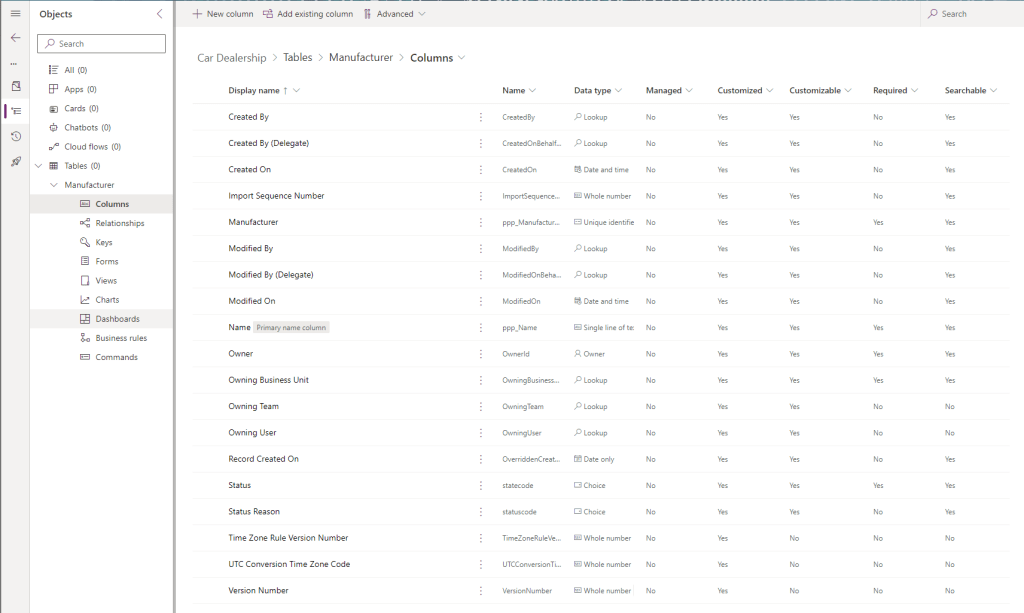
Note that Dataverse creates a lot of columns for us by default! Of interest are the following:
- Name – our Primary name column
- Manufacturer – the actual primary key of the record. Is unique and has the same name as the table.
- Created By and Created On – Dataverse automatically saves which user created a record and at what date and time.
- Modified By and Modified On – Related to the above, Dataverse also saves the user who made the last change to the record and the date and time of the change.
- Status – Whether a record is Active or Inactive.
We’ll cover other columns in future posts. Today we want to add a new column to specify which country a Manufacturer is based in. If we click on + New column at the top of the screen, the following side dialog will appear:
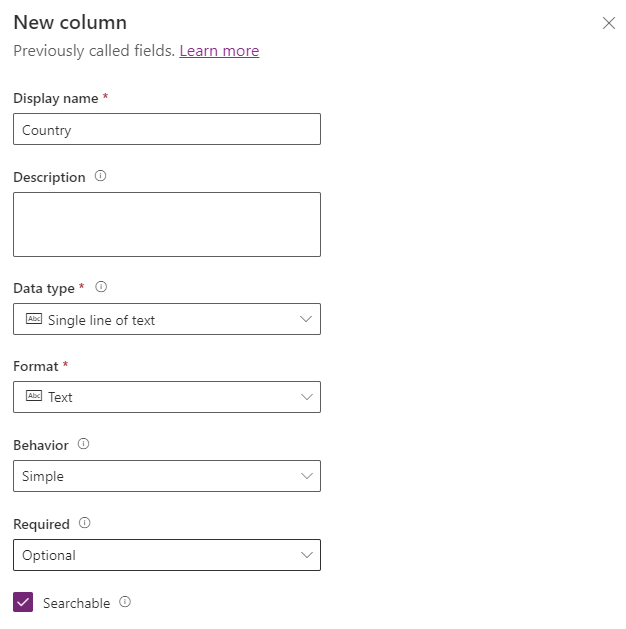
I’ve filled in Display name as Country. Note that Dataverse gives us a range of options for the Data type of the column – for our table we want the user to select from a fixed list of countries, rather than have to type in country name in each time, so we select Choice:
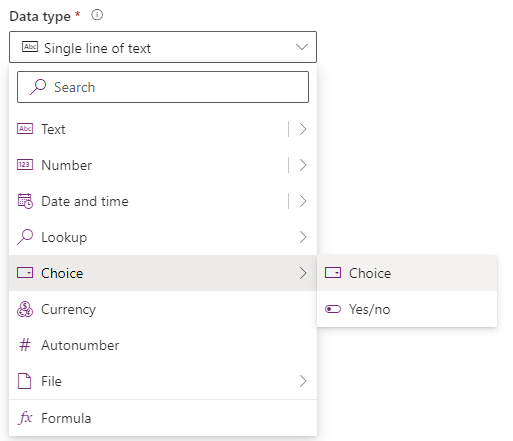
This will present us with an array of new options:
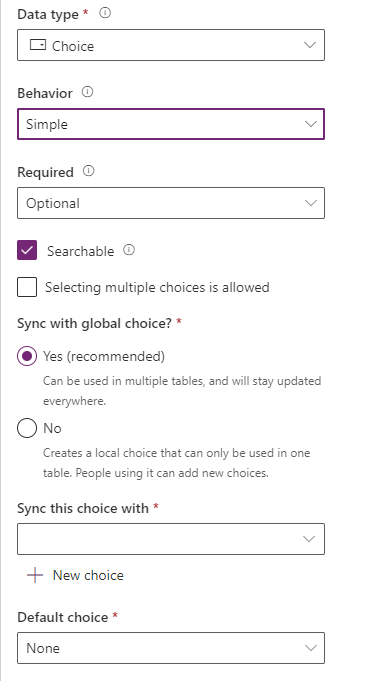
We can leave the default values here as is. Note that we are making the Required field Optional – perhaps the person entering the record isn’t sure what the Manufacturer country of origin is when creating the record, but they can add it in later when they do.
We want to click the + New choice button, which opens the following dialog:
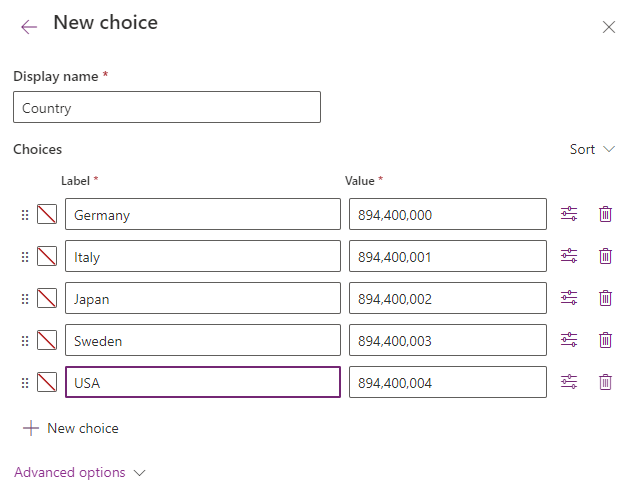
I’ve already filled in the fields here:
- Display name – this is not the name of our column, but the name we want to give to this collection of values. I’ve set this to Country.
- Choices – using the + New choice button, I’ve added in all the options shown. We can set the Label, and Dataverse will assign a Value for each entry (you don’t have to use the numbers I have entered). Note that we can reorder our list by clicking the start of the row and dragging it to the desired position.
Clicking save will display the New column dialog again, where we can select our new Choice list from the Sync this choice with dropdown value:
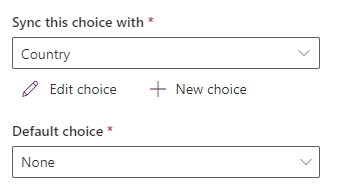
I have an option to set a Default choice if I like, but I’m leaving that as None. Click Save to create the new column for our table.
Note that our solution view has been updated – we can see that Choices is now an option in the side navigation, from where we can select and edit our list of Countries:
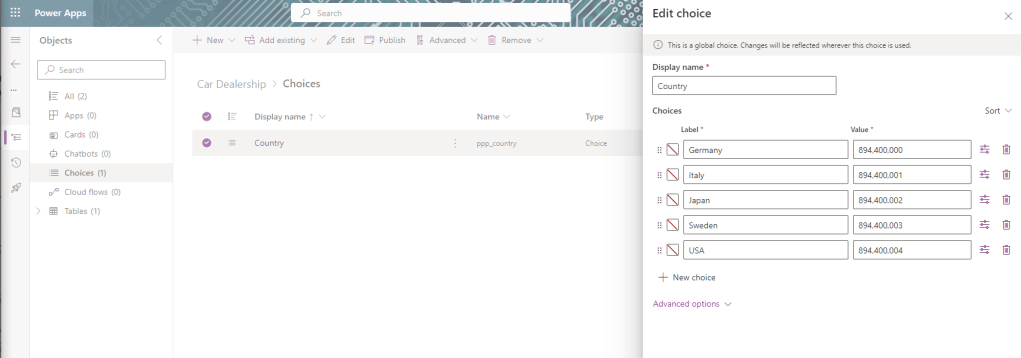
Let’s move on to our Model table.

 Power Platform Pete
Leave a comment