
In our previous post, we created two Power Automate flows to generate a Microsoft Word document when a record in the Service table was marked as complete:
- Generate Service Document – generates our requested document for a supplied Service ID and distributes via email.
- Complete Service – calls the Generate Service Document flow when a service is marked as complete.
Splitting this functionality into two flows allows us to write another flow that calls the Generate Service Document child flow instead of having to duplicate that functionality elsewhere.
Consider the circumstance where a Service appointment is marked as complete, and the document is generated and emailed to the Salesperson as expected – what if that Salesperson is unavailable for that day? Ideally, any other Salesperson should be able to generate a copy of this document on demand, and that’s what we’ll do today.
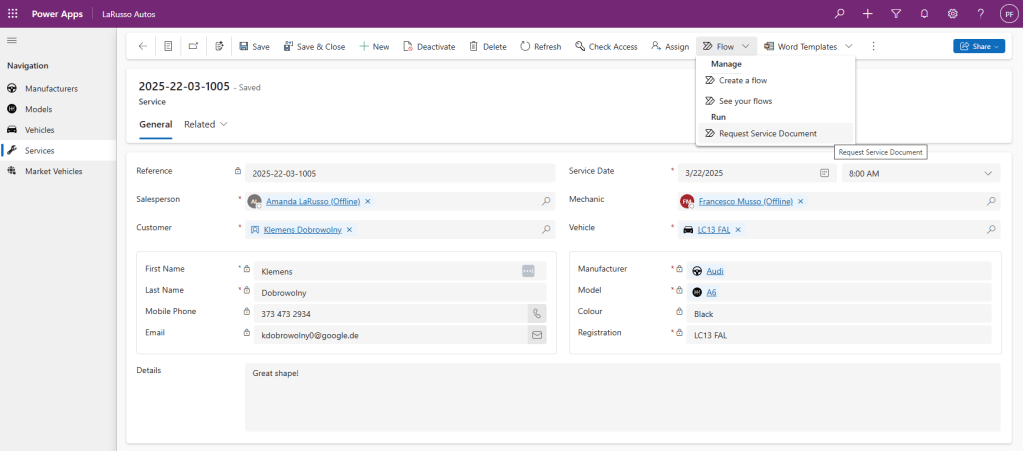
We’re going to write a new Power Automate flow named Request Service Document, that we’ll be able to call directly from our LaRusso Autos model-driven app as shown below:
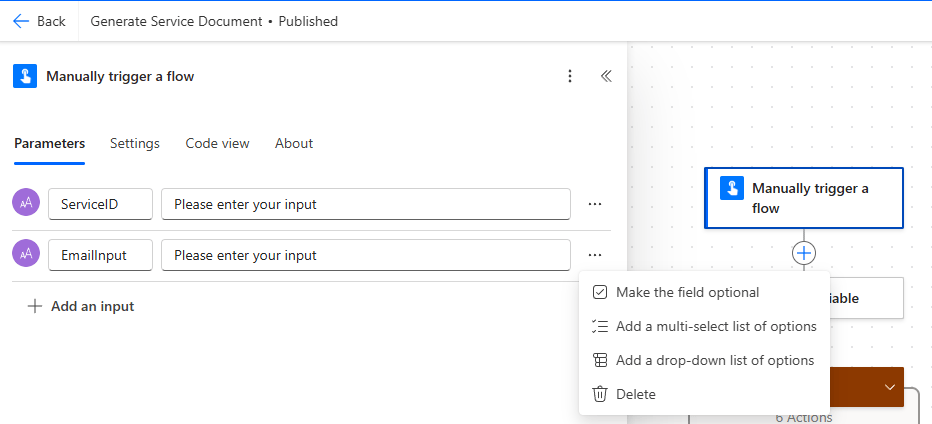
Before we write our new flow, we need to make some changes to our existing Generate Service Document flow. The first thing we want to do is add a new text input parameter named EmailInput to our Trigger. If we click on the three dots at the end, we should select the option to Make the field optional – select this so that we do not break other flows using the Generate Service Document flow (i.e. the Complete Service flow).
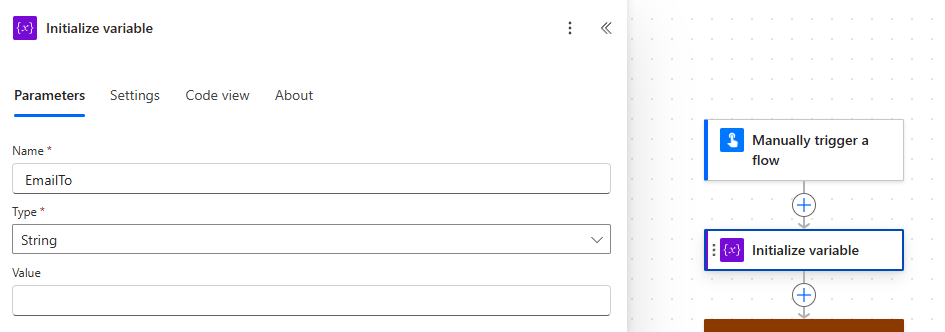
Next, we add a new Initialize variable Action after our Trigger as follows:
- Name – EmailTo
- Type – String
- Value – leave blank
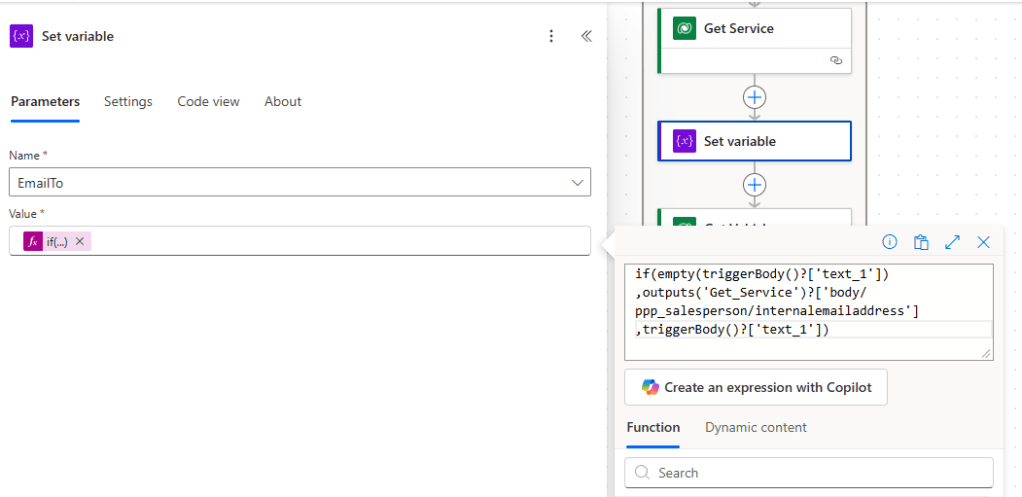
Now we add a new Set variable Action after our Get Service Action. What we want to do is set the value of EmailTo as follows:
- If the EmailInput parameter is empty, use the Salesperson Email from the Get Service Action.
- Else use the EmailInput parameter.
Set the Value of EmailTo as follows:
if(empty(triggerBody()?['text_1'])
,outputs('Get_Service')?['body/ppp_salesperson/internalemailaddress']
,triggerBody()?['text_1'])
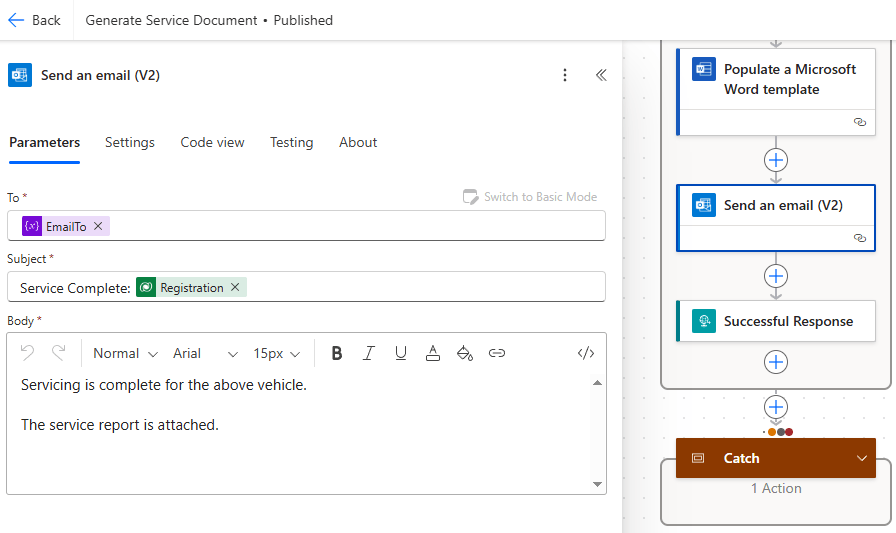
Lastly, update the Send an email (V2) Action to use our EmailTo variable. Save and Publish.
 Power Platform Pete
Leave a comment