In our last post we created a custom connector to read data from our Market Vehicles API. We updated our existing scheduled Power Automate flow to use our new connector, but now we look into how we can integrate it into our model-driven and canvas apps.
With a canvas app, we’ve already shown how we can call Power Automate flows from our app and then display the results on screen (see this post for a reminder), so that approach is already understood, but what about model-driven apps?
For a model-driven app, we could create a scheduled flow to read from the API and write entries to Dataverse, but potentially we will have a lot of records that we don’t need. Better to expose the output of the API with our app somehow.
Step forward Custom Pages. To all intents and purposes, these are mini canvas apps embedded in our model-driven apps. To create one, go to the solution view for our solution and click + New > App > Page from the top ribbon.
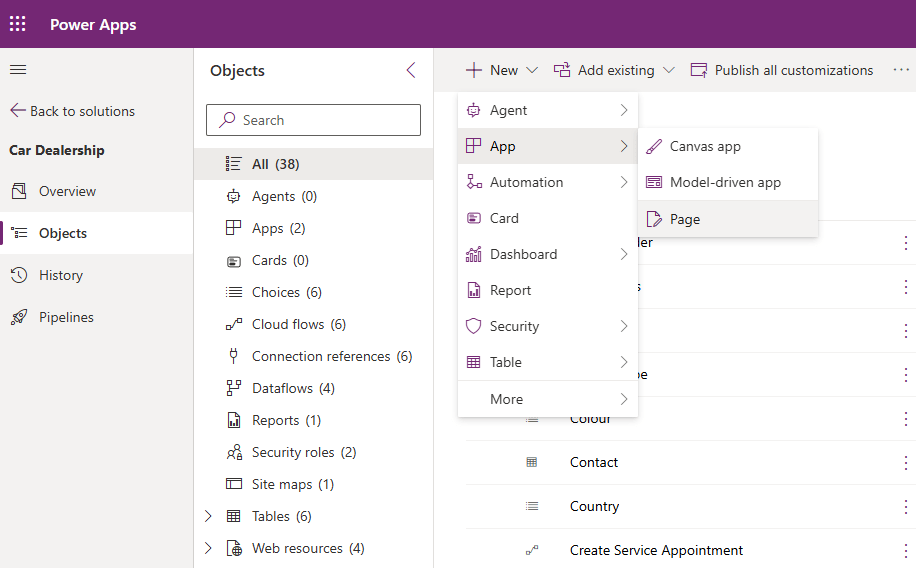
This will load the page design studio which should look very familiar by now…
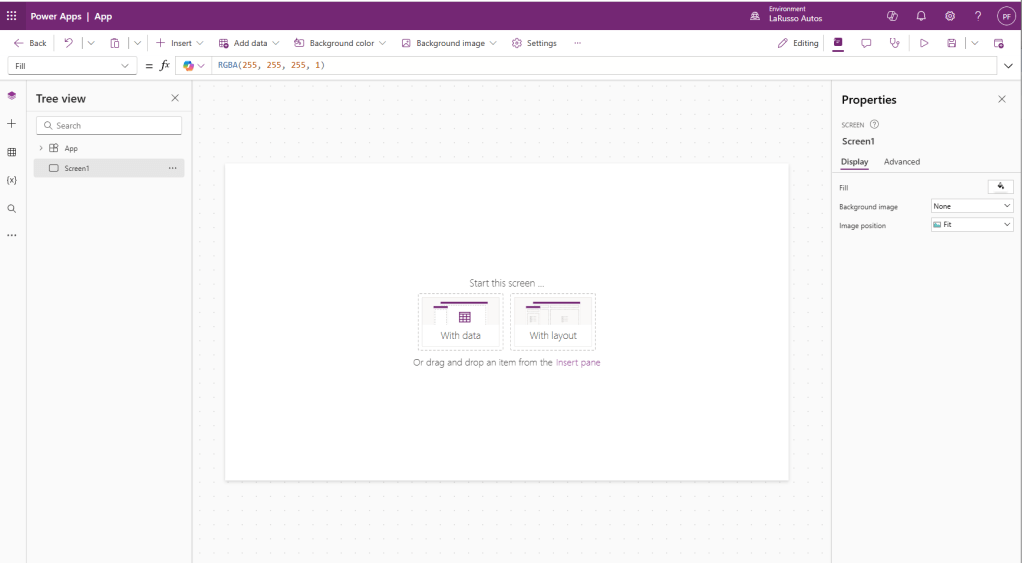
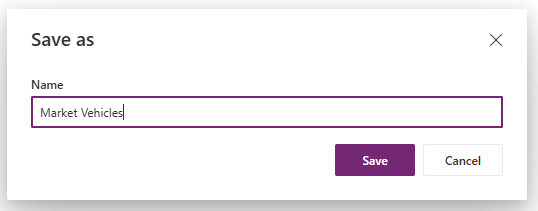
Click the Save button and give our (blank) custom page a name – I’ve set mine to Market Vehicles.
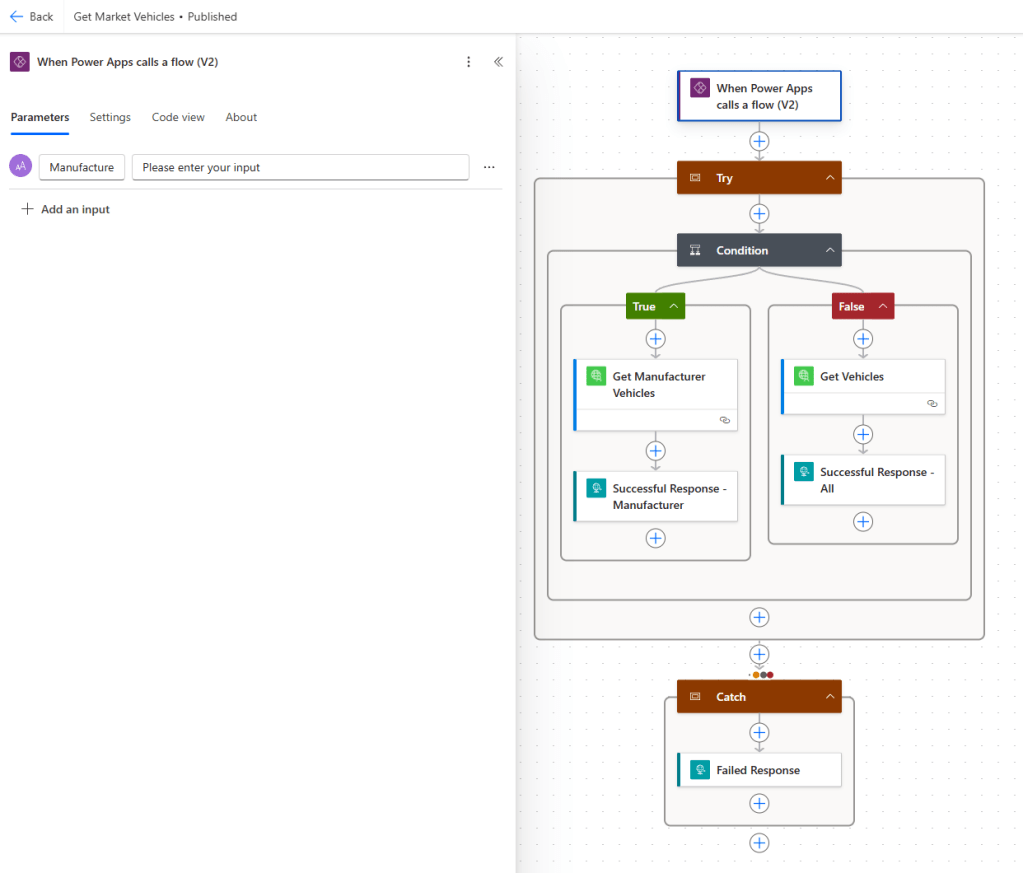
Before we do anything with this screen, let’s create the Power Automate flows we need. Go to Power Automate and create a new Instant flow named Get Market Vehicles with the following structure:
- Trigger – Power Apps – When a Power Apps calls a flow (V2).
- Scope – Try
- Condition
- True
- Action – Custom Connector – Get Manufacturer Vehicles
- Action – Response – rename as “Successful Response – Manufacturer”
- False
- Action – Custom Connector – Get Manufacturer Vehicles
- Action – Response – rename as “Successful Response – All”
- True
- Condition
- Scope – Catch (run after Try failed)
- Action – Response – rename as “Failed Response”
In our trigger, we add a text input parameter named Manufacturer.
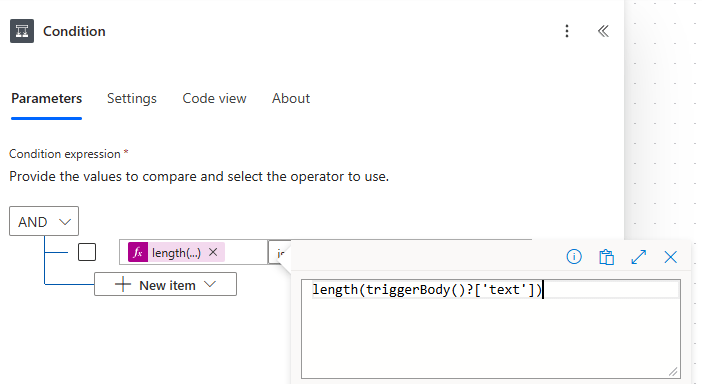
Next, we update the Condition to check if the input parameter is not empty – if an input is specified, we want to look for vehicles from a specified manufacturer, else return all vehicles for all manufacturers.
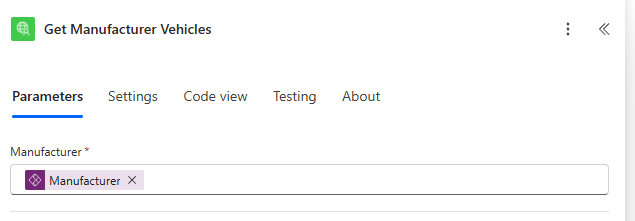
If a manufacturer has been specified, we pass the value to our Get Manufacturer Vehicles action on the True branch
Else, we call Get Vehicles on the False branch, where no input parameter is required. Next we update the Successful Response – Manufacturer action:
- Status Code – 200
- Body – Body from the Get Manufacturer Vehicles action.
- Response Body JSON Schema – click the Use sample payload to generate schema link and paste in a sample output from the API endpoint.

Then update the Successful Response – All action:
- Status Code – 200
- Body – Body from the Get Vehicles action.
- Response Body JSON Schema – click the Use sample payload to generate schema link and paste in a sample output from the API endpoint.
Save and publish our flow and add to the solution as before.
 Power Platform Pete
Leave a comment