
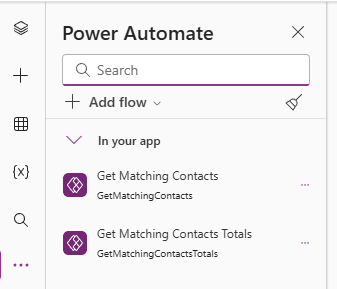
Go back to our canvas app and add in our Instant flows as before.
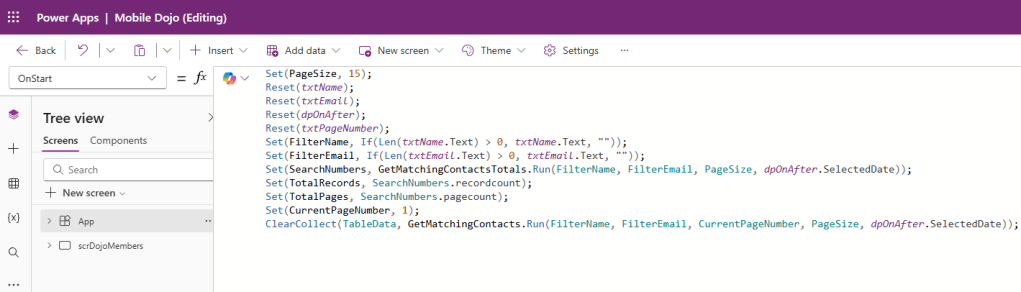
Now let’s set up our app to fetch the first page of records when the app starts. We will do the following:
- Set the number of record per page to 15.
- Reset all out input controls to their default values.
- Call our Get Matching Contacts Totals flow to get the total number of records that match the search criteria (RecordCount) and the number of pages (PageCount). Set these as the variables TotalRecords and TotalPages respectively.
- Set the current page number to 1.
- Call our Get Matching Contacts flow to get the first page of 15 records that match the search criteria and set as the variable TableData.
Set(PageSize, 15);
Reset(txtName);
Reset(txtEmail);
Reset(dpOnAfter);
Reset(txtPageNumber);
Set(FilterName, If(Len(txtName.Text) > 0, txtName.Text, ""));
Set(FilterEmail, If(Len(txtEmail.Text) > 0, txtEmail.Text, ""));
Set(SearchNumbers, GetMatchingContactsTotals.Run(FilterName, FilterEmail, PageSize, dpOnAfter.SelectedDate));
Set(TotalRecords, SearchNumbers.recordcount);
Set(TotalPages, SearchNumbers.pagecount);
Set(CurrentPageNumber, 1);
ClearCollect(TableData, GetMatchingContacts.Run(FilterName, FilterEmail, CurrentPageNumber, PageSize, dpOnAfter.SelectedDate));
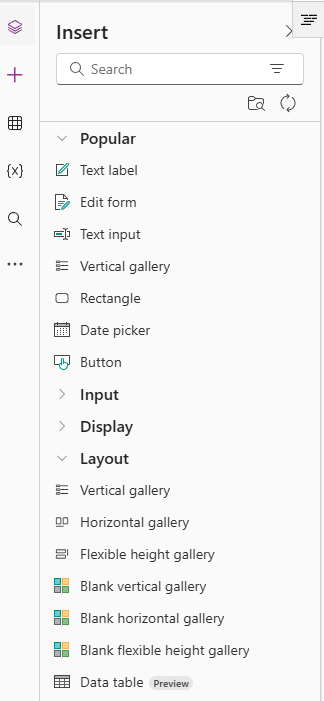
Next, we add a Data table component to our canvas:
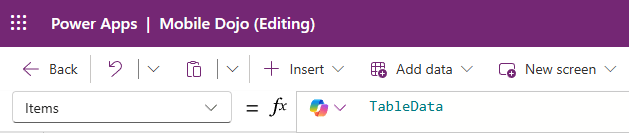
We set the Items property of our Data table to be the result of the Power Automate flow – TableData.
Next we set the OnSelect property of our Search button to call both of our flows again, update the TotalRecords, TotalPages and TableData properties which in turn will update the Data table.
Set(FilterName, If(Len(txtName.Text) > 0, txtName.Text, ""));
Set(FilterEmail, If(Len(txtEmail.Text) > 0, txtEmail.Text, ""));
Set(SearchNumbers, GetMatchingContactsTotals.Run(FilterName, FilterEmail, PageSize, dpOnAfter.SelectedDate));
Set(TotalRecords, SearchNumbers.recordcount);
Set(TotalPages, SearchNumbers.pagecount);
If(Int(txtPageNumber.Text) > TotalPages, Reset(txtPageNumber));
Set(CurrentPageNumber, Int(txtPageNumber.Text));
ClearCollect(TableData, GetMatchingContacts.Run(FilterName, FilterEmail, CurrentPageNumber, PageSize, dpOnAfter.SelectedDate));
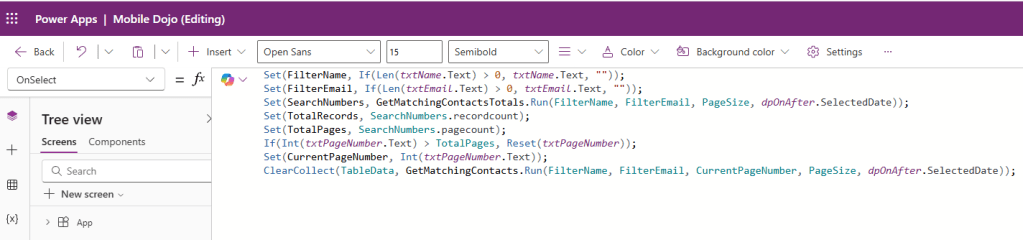
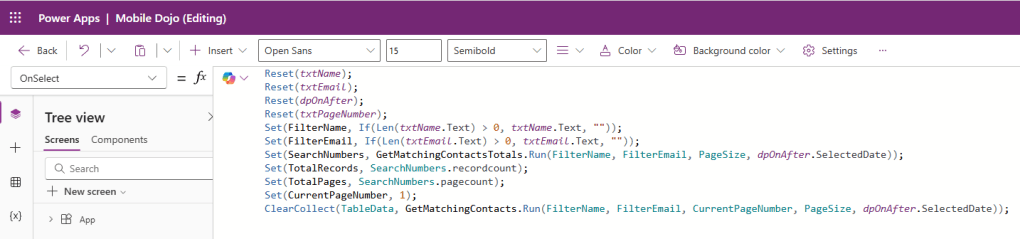
Similarly, we update the OnSelect property of our Reset button to set the controls to their default values before calling both of our flows again, updating the TotalRecords, TotalPages and TableData properties which in turn will update the Data table again.
Reset(txtName);
Reset(txtEmail);
Reset(dpOnAfter);
Reset(txtPageNumber);
Set(FilterName, If(Len(txtName.Text) > 0, txtName.Text, ""));
Set(FilterEmail, If(Len(txtEmail.Text) > 0, txtEmail.Text, ""));
Set(SearchNumbers, GetMatchingContactsTotals.Run(FilterName, FilterEmail, PageSize, dpOnAfter.SelectedDate));
Set(TotalRecords, SearchNumbers.recordcount);
Set(TotalPages, SearchNumbers.pagecount);
Set(CurrentPageNumber, 1);
ClearCollect(TableData, GetMatchingContacts.Run(FilterName, FilterEmail, CurrentPageNumber, PageSize, dpOnAfter.SelectedDate));
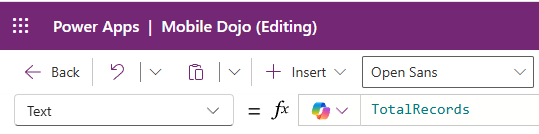
We also want to set the value of our label displaying the total number of records – set the Text property to be TotalRecords.
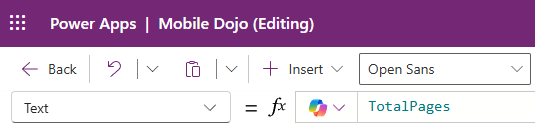
Similarly, we update the value of our label displaying the total number of pages – set the Text property to be TotalPages.
Save and publish the app. Note how the number of records and pages update depending upon the entered filter criteria.
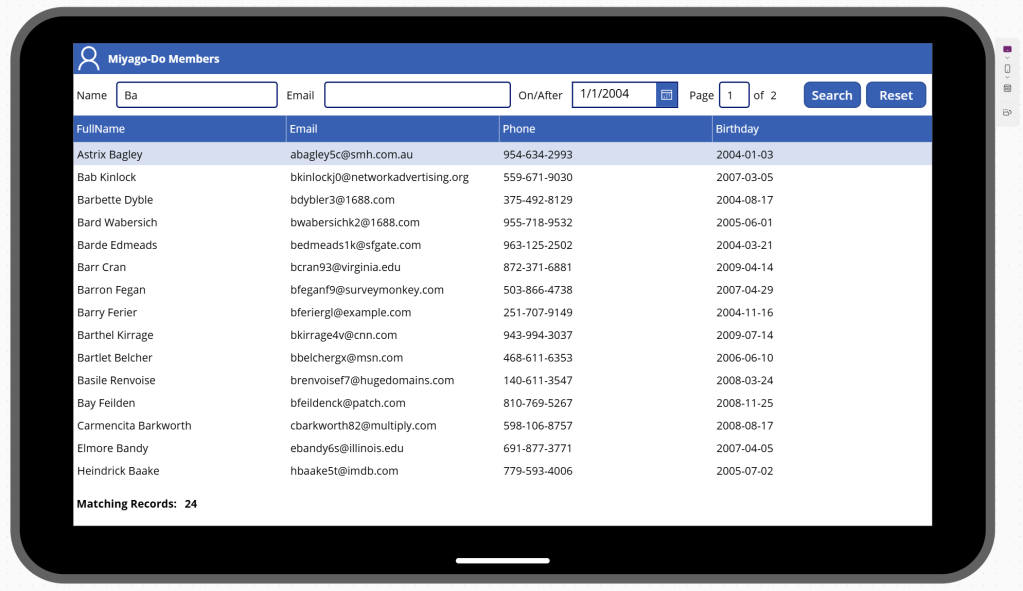
And breathe! As you can see, there’s a lot of work that went into replicating what model-driven apps do out of the box. If I’m honest, it took me quite a while to iron out some of the funnies while building this app. I had intended to implement sorting, but this post is long enough as it is! To do so, we’d need to:
- Add SortAscending true/false variables to the app for each of our four columns.
- Update the Get Matching Contacts flow
- Add in the four new SortAscending parameters to the trigger.
- Update the FetchXML to cater for the new parameters (I discovered some funnies here with the syntax as well).
- No changes to our Get Matching Contacts Totals flow – it is unaffected by sorting.
Let’s recap on what we’ve learned:
- Using the page and count attributes of FetchXML to retrieve a fixed number of records that match the specified filter criteria.
- Using the aggregate attribute of FetchXML to retrieve single values rather than a list of records.
- Working with Data tables in canvas apps.
- How to implement pagination to ensure your app works even with larger datasets.
- That it’s much easier to do this in a model-driven app!

 Power Platform Pete
Leave a comment