
Selecting the CSV dataset, click on the Merge button as before and complete the Merge dialog as follows:
- Select the FullModelName column from the first dataset
- Right table for merge – Model table (ppp_model)
- Select the FullModelName column from the first dataset
- Join kind – Inner

As we have already updated our Manufacturer and Model tables with all new records in our previous posts, the rows of our CSV dataset will find a match in Dataverse. If we expand the Model column in the merged dataset, select the following columns:
- Model Code
- Manufacturer Code
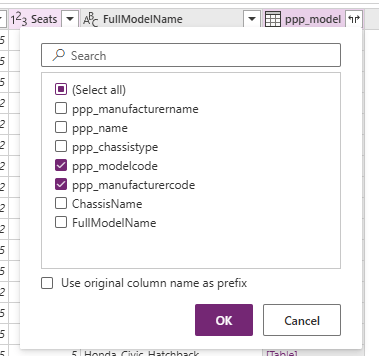
This results in our complete dataset – all of the Vehicles we wish to add into our app have been mapped with the correct Manufacturer Code and Model Code alternate keys, and so will be mapped to the correct Manufacturer and Model in Dataverse.

Just before we begin merging, there are a few minor data formatting issues to tweak. The first is our Purchase Price column, identified by the Dataflow as a Whole number. In our Vehicle table, this is a Currency field – right click on the column header and select Currency from the dropdown to change the column type.

The next is our Registration Date field, identified by the Dataflow as an alphanumeric string. Again, right click on the column header, ignore the Date/Time option and click on Using locale… instead.

From the dialog that appears, we can set the type and locale. Complete as follows:
- Data type – Date
- Locale – set to match your dataset. Mine is dd/mm/yyyy so English (United Kingdom)

With these columns completed, we can begin the import process. Select our CSV dataset and complete the Load settings section as follows:
- Load to existing table
- Destination table – Vehicle (ppp_Vehicle)

Set the Import method to Append

And complete our columns mappings:
- Colour -> ppp_Colour
- Engine Size -> ppp_engineSizeCC
- Fuel -> ppp_Fuel
- ppp_manufacturercode -> ppp_Manufacturer.ppp_ManufacturerCode (this is our alternate key mapping to the Manufacturer table)
- Mileage -> ppp_Mielage
- ppp_modelcode -> ppp_Model.ppp_ModelCode (this is our alternate key mapping to the Model table)
- Doors -> ppp_NumberOfDoors
- Seats -> ppp_NumberOfSeats
- Purchase Price -> ppp_PurchasePrice
- Registration -> ppp_Registration
- Registration Date -> ppp_RegistrationDate
- Transmission -> ppp_Transmission

Note that we are not mapping any values to the Sale Date column of our Vehicle table as we do not want to enter a value for this.

Also note that the following text values are successfully mapped to the correct Choice column value as long as the text labels match:
- Colour
- Fuel
- Transmission
As before, complete the Load settings section for our other dataset as Do not load. Publish the Dataflow and wait for it to Refresh. Then we can check the LaRusso Autos app to see the new Vehicles in our showroom, correctly mapped to the Manufacturer and Model tables.

We can see all the new Vehicles added. If we click on any one of them, we can see that all data has been successfully imported and the mapping to the Manufacturer and Model tables is correct. Take a look at this Chevrolet Corvette Stingray:

The showroom is fully stocked. Get down to LaRusso Autos and see if there’s anything you like, they really kick the competition!
 Power Platform Pete
Leave a comment