
In this post, we conclude our series by importing all our application records – in our case, we are adding all the new Vehicles into our LaRusso Autos app.
Along the course of this series, we’ve picked up many new skills including:
- Working with multiple data sources
- Joining datasets
- Creating formula columns
- Creating conditional columns
- Working with alternate keys to preserve table relationships
- Mapping different column types
This post will bring together everything we have learned thus far. We begin as before by creating a new Dataflow named Import Vehicles, selecting our CSV file as before. We’ll also create a custom column named FullModelName, as we did in the previous post, concatenating:
- Vehicle Manufacturer Name
- Model Name
- Model Chassis type
Resulting in the following data.

As per the previous post, we will add another data source by clicking the Get Data button in the ribbon, and adding in our Model table (ppp_Model). Once added, we click the Choose columns button to limit the columns we are interested in, namely:
- Name
- Chassis type
- Manufacturer Name
- Model Code
- Manufacturer

Why these fields? Well, we have all the data we want on the Vehicle, such as Registration, Colour, Mileage…etc but we want to link our new Vehicle to the Manufacturer and Model tables. To do so, we will need to get the Manufacturer Code and Model Code respectively. The latter we already have from the columns we have selected. When the dataset loads, right click on the Manufacturer column and select the Manufacturer Code column from the Choose columns dialog.

This will result in the following dataset:

As per the previous post, we want to join our CSV dataset to our Model table based on the FullModelName concatenation. For our table, we will need to create a conditional column as before to map the ChassisType from a numeric value to a string:

Resulting in the following dataset:
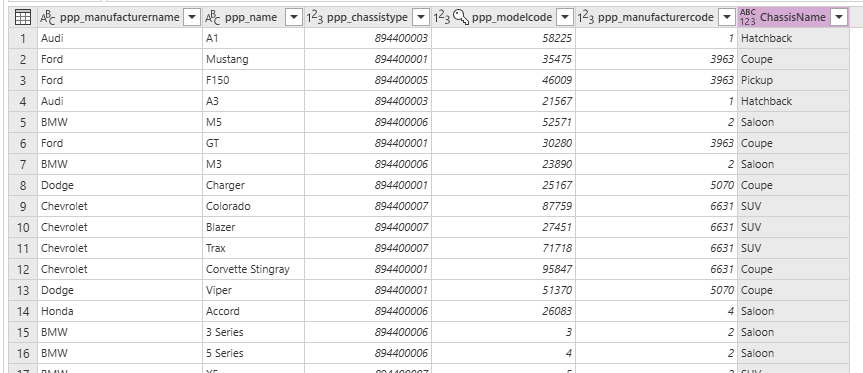
Now that we have the ChassisName, we create a new FullModelName column on our Model dataset but adding a custom column like we did in the last post.

And now our Model dataset looks like this:

 Power Platform Pete
Leave a comment