
Having set out our plan in the previous post, we begin by importing data into our “Reference” tables. These are tables that:
- are rarely updated
- have no foreign key dependencies on other tables
For our LaRusso Autos app, the Manufacturer table fits this criteria:
- It’s rare that the dealership would add another Manufacturer to its sales portfolio.
- Manufacturers are added with much less frequency with new Vehicles, as new Vehicles are likely made by an existing Manufacturer.
- The Manufacturer table has no dependencies on other tables.
In this post, we want to examine the data source and find any Manufacturers that are not already in our Manufacturers table. The data export of Vehicles is a single flat file table under the following headings:
- Manufacturer name
- Model name
- Chassis type
- Registration
- Registration Date
- Mileage
- Engine Size
- Purchase Price
- Fuel
- Transmission
- Colour
- Number of Doors
- Number of Seats
We don’t need all of these columns, and we may have duplicate entries (i.e. multiple Vehicles for the same Manufacturer). We’ll need to use Power Query to identify what we need here.
Following the steps from the first post in this series, we create a new Dataflow named Import Manufacturers and import our CSV file of data, then click the Transform data button.

Click on the Choose columns button in the top ribbon, and select Manufacturer as the only column we are interested in before clicking OK:
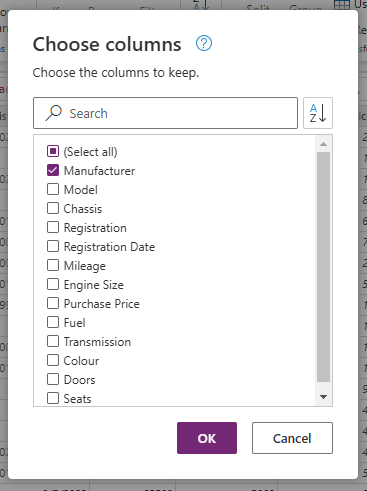
The result is a column of Manufacturer names, of which we have many duplicates.

To solve this, right click on the column header and select Remove duplicates from the dialog that appears.

And now we have our unique Manufacturer names:

Great! But we’re not done yet. We don’t want to add in Manufacturers that we already have in our table. We’ll need to compare what we have here with the contents of our Manufacturer table. Click on Home > Get data > More… from the top ribbon.

This launches the range of available data sources screen. Select Dataverse and sign in as per our first post in this series.

Select the Manufacturer table (logical name here is ppp_manufacturer, note the publisher prefix!) and click Next.

Now we have two data sources in our Power Query window. Select the Manufacturer data set under Queries and then click the Choose columns button. From the popup that appears, select the Name column only (logical name here is ppp_name, again with the publisher prefix). Click OK.

So now we have two datasets with Manufacturer names
- Our CSV dataset has the names of all Manufacturers from the data being imported.
- Our Manufacturer table has the names of all those we currently have Vehicles for.
There is the possibility that the CSV has new Manufacturers, and we are only interested in adding those to our table. To achieve this, select the CSV dataset and then click the Merge queries button.

This launches the Merge dialog. We want to combine our two datasets into one. Select the following options then click OK.
- Highlight the Manufacturer column from our first dataset
- Right table for merge – Manufacturer table (ppp_manufacturer)
- Hightlight the Manufacturer column (ppp_manufacturer) from our table
- Join kind – Left outer

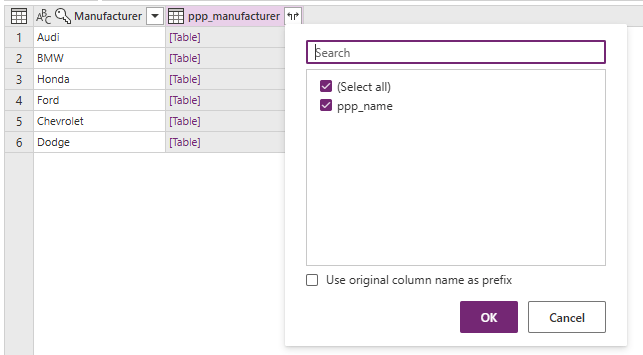
The output is shown below. Click on the expand symbol on the ppp_manufacturer column

From the dialog that appears, select our Name column (ppp_name) and click OK.

 Power Platform Pete
Leave a comment