
Updating Views and Forms
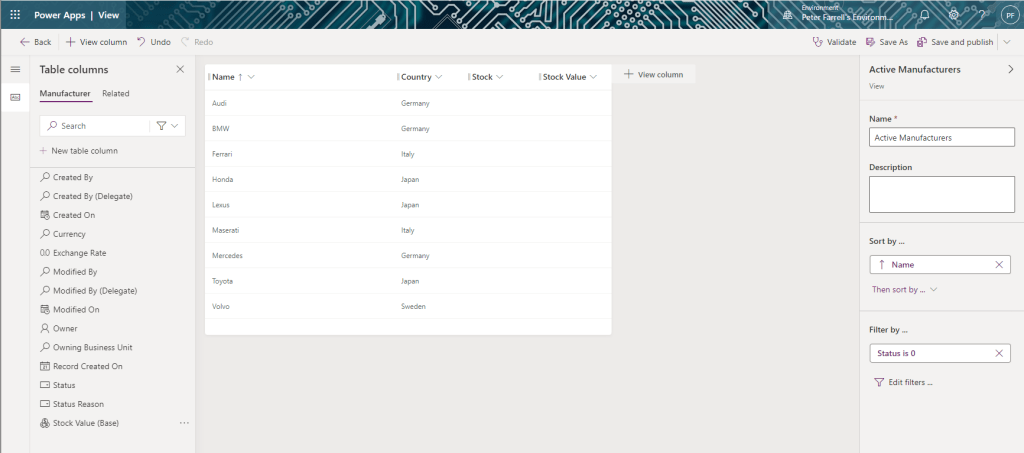
From the side navigation in the solution view, click Tables > Manufacturer > Views. Select the Active Manufacturers view and drag and drop the Stock and Stock Value columns onto the view. Then click Save and publish.
From the side navigation in the solution view, click Tables > Manufacturer > Forms. Select the Main form and drag and drop the Stock and Stock Value columns onto the form. Then click Save and publish.
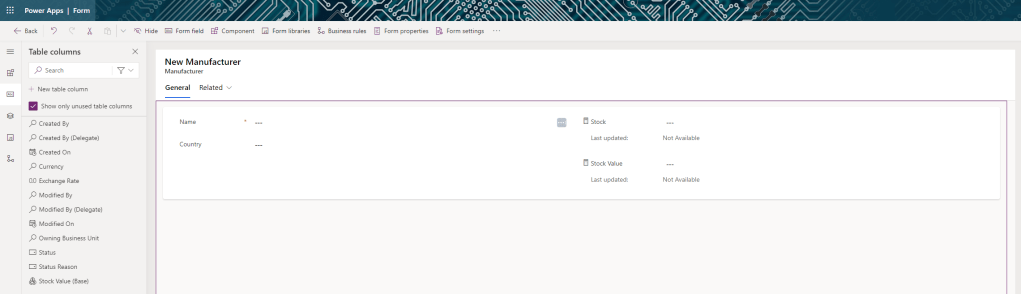
Note that the Rollup columns are readonly and have an accompanying Last updated field. This is important – Rollup columns are not real time. This may or may not be a deal breaker – if you need an hourly or end of day figure, this functionality is fine. If you need real time updates, Rollup columns are not suitable for your needs. Click Save and publish. Launch the app and view how the Active Manufacturers has been updated.
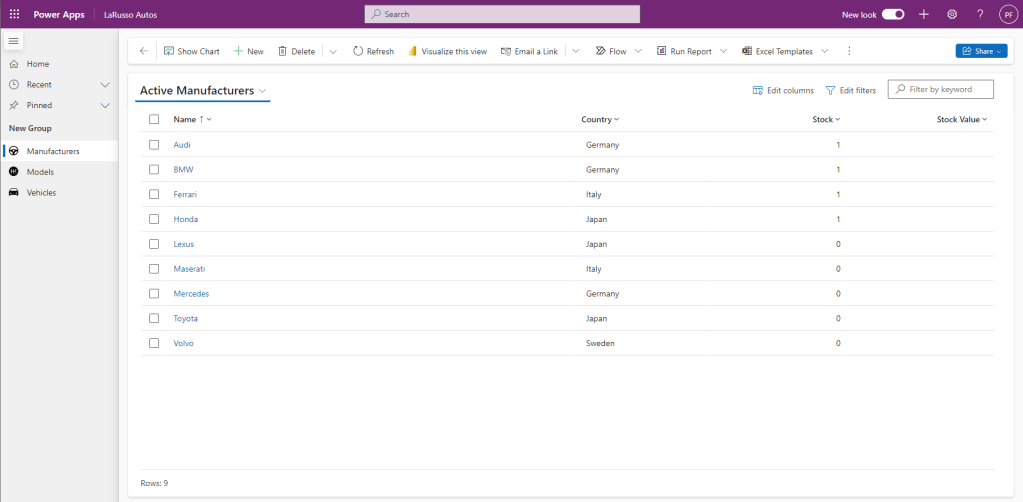
Initially the Stock field will be blank – leave it for an hour or so and return as discussed above. But wait! The Stock Value field is not working…
 Power Platform Pete
Leave a comment